Shortcut MCP Server: Connect AI Tools to Your Data

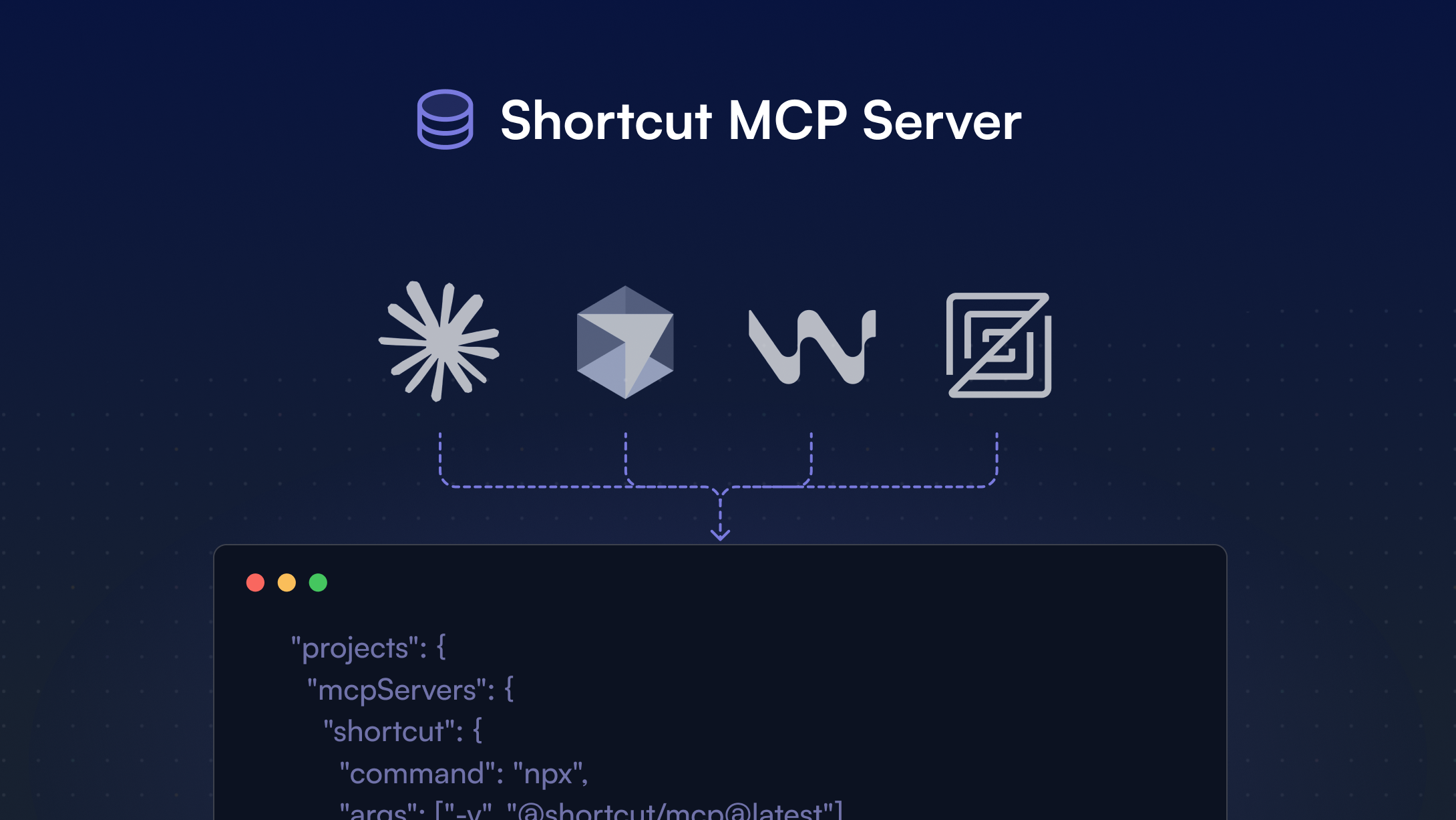
Connect your Shortcut data directly to AI tools like Claude Code, Cursor, Windsurf, and Zed
More teams are building internal AI agents to speed up development workflows, from writing code to fixing bugs and generating documentation. But if your agents can’t access the systems where you actually track work, they can only go so far.
That’s why we built the Shortcut MCP Server, designed to help you connect Shortcut to AI tools like Claude Code, Windsurf, Cursor, and Zed in a fast, secure way. Whether you’re fixing bugs or building new features, the Shortcut MCP Server makes it easy to bring AI-driven automation into your daily workflow. Let’s walk through what MCP is, what the server supports, and how it’s already being used to write better tests, stay in flow, and ship faster.
What is MCP?
MCP stands for Model Context Protocol, a standard for connecting AI models to external data sources. It gives your tools access to real-time context like Stories, Epics, and comments, and enables useful actions such as generating summaries or updating Stories.
Think of it as a bridge between your AI-powered tools and the work your team tracks in Shortcut.
The Shortcut MCP Server implements this protocol and makes your Shortcut data available to AI agents in a secure and structured way.
What can you do with the Shortcut MCP Server?
- Fix bugs faster: Claude Code can pull a Shortcut Story, understand what’s broken, and write a fix. One recent example: we asked Claude to “Fix Story 286003” and it updated a regular expression, added test cases, and marked the Story complete.
- Automate project workflows: Tools like Windsurf and Cursor can reference Shortcut data to create new Stories, keep boards up to date, and coordinate code changes.
- Provide context-aware AI: Agents can use live Shortcut data to generate more relevant and useful output. For example, they can summarize Story comments or suggest next steps based on an Epic description.
- Stay in flow: No need to copy and paste from one tool to another. With MCP support, your tools can pull live data directly from Shortcut.
What entities are supported?
The Shortcut MCP Server supports different levels of interaction with Shortcut data, depending on the entity type:
| Entity | Retrieve | Create | Update/Modify | Notes |
|---|---|---|---|---|
| Stories | Yes | Yes | Yes | Full support, including comments and Sub-tasks |
| Epics | Yes | Yes | - | Can be created and retrieved |
| Iterations | Yes | Yes | - | Can be created and retrieved |
| Objectives | Yes | - | - | Read-only access |
| Teams | Yes | - | - | Read-only access |
| Members | Yes | - | - | Read-only access |
| Workflows | Yes | - | - | Read-only |
| Docs | - | Yes | - | Can be created |
This breakdown helps you understand what your AI tools can access and act on when connected to Shortcut through MCP.
How to connect
You can use the hosted Shortcut MCP Server with popular AI tools. Authentication is handled via OAuth — you don’t need to create or store a Shortcut API token. Here’s how to set it up:
Claude Code
- Install and sign in to Claude Code.
- Add Shortcut as a remote HTTP MCP server:
claude mcp add --transport http shortcut https://mcp.shortcut.com/mcp- Start Claude Code and follow the browser prompt to authorize Shortcut.
- Run
claude mcp listto confirm that theshortcutserver is connected.
Cursor
- Open or create
~/.cursor/mcp.json. For a project-only connection, use<project-root>/.cursor/mcp.json. - Add the Shortcut server:
{
  "mcpServers": {
    "shortcut": {
      "url": "https://mcp.shortcut.com/mcp"
    }
  }
}- Restart Cursor.
- Follow the authorization prompt the first time Cursor connects to Shortcut.
Windsurf
- Open the MCP settings from the Cascade panel, or open
~/.codeium/windsurf/mcp_config.jsondirectly. - Add the Shortcut server:
{
  "mcpServers": {
    "shortcut": {
      "serverUrl": "https://mcp.shortcut.com/mcp"
    }
  }
}- Restart Windsurf.
- Follow the authorization prompt the first time Windsurf connects to Shortcut.
Zed
- Open your
settings.jsonfile. Instructions here - Add the Shortcut server:
{
  "context_servers": {
    "shortcut": {
      "url": "https://mcp.shortcut.com/mcp"
    }
  }
}- Restart Zed.
- Follow the authorization prompt the first time Zed connects to Shortcut.
Troubleshooting and common issues
For detailed setup instructions, troubleshooting, and available entities, see the Shortcut MCP Server help page.
Still having trouble?
- Contact our support team at support@shortcut.com
- Ask for help in the Shortcut Community Slack
What’s next for the Shortcut MCP Server?
We’re just getting started. We’re expanding support for more resource types and exploring new ways for AI agents to take meaningful action on Shortcut data. Whether you’re a solo dev or on a large team, our goal is to help you spend less time wrangling tickets and more time building.
If there’s something you’d love to see this server support, let us know.
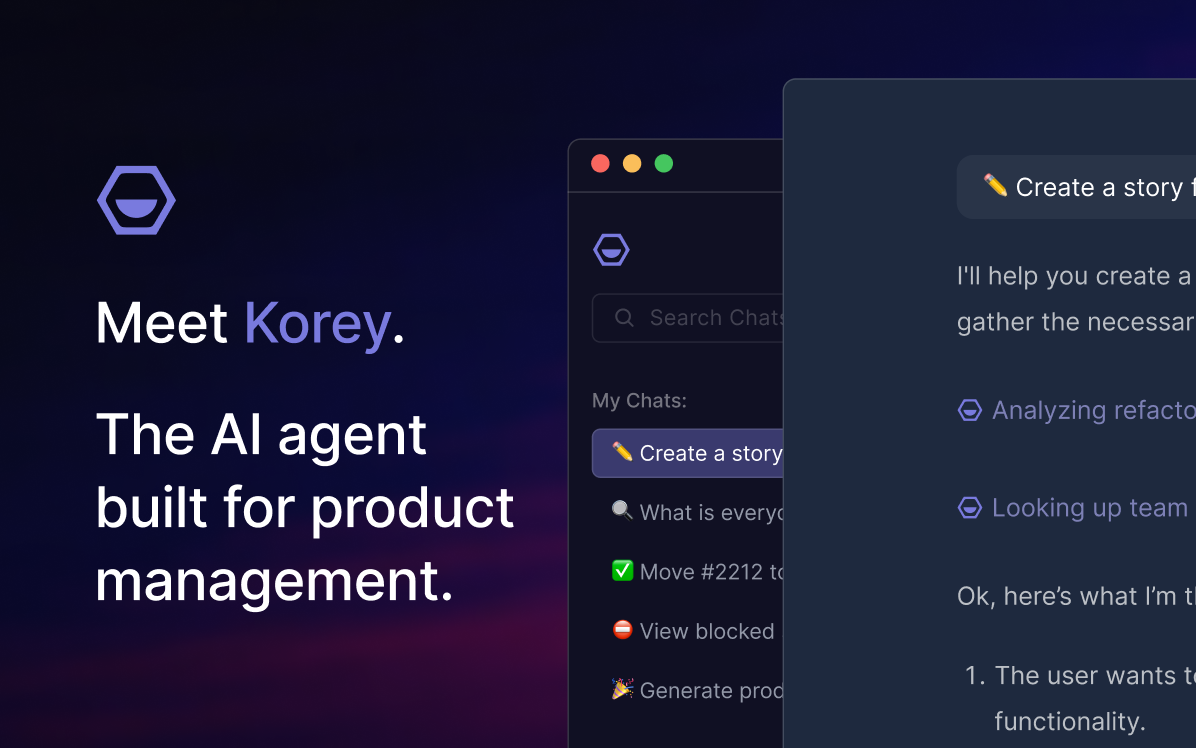
Looking for a product management AI agent? Meet Korey
For teams bringing agents into their engineering workflows, check out Korey, a powerful addition to your set of product management AI tools. Korey helps manage projects, check status, and take on the work you don’t want to do, so you can stay focused on building.
Try it today
Getting started takes just a few minutes. If you’re already using Claude Code, Cursor, Windsurf, or Zed, add the config, authorize your Shortcut account, and start using your real project data with your favorite tools.