Overview
Error tracking integrations allow you to automatically create Shortcut Stories when your applications encounter errors, crashes, or exceptions. This ensures bugs are captured immediately and can be prioritized alongside your other development work.
Available Integrations
| Integration | Type | Auto-Create Stories | Bi-directional Sync | Maintained By |
|---|---|---|---|---|
| Sentry | Error Tracking | ✓ | ✓ | Sentry |
| Bugsnag | Error Monitoring | ✓ | ✗ | Bugsnag |
| Rollbar | Error Alerting | ✓ | ✗ | Rollbar |
| Honeybadger | Exception Monitoring | ✓ | ✗ | Honeybadger |
| Bugsee | Bug Reporting | ✓ | ✗ | Bugsee |
| Instabug | Bug Reporting | ✓ | ✗ | Instabug |
| Marker.io | Visual Feedback | ✓ | ✗ | Marker.io |
| Feedbucket | Website Feedback | ✓ | ✗ | Feedbucket |
Common Setup Pattern
Most error tracking integrations follow the same basic setup:
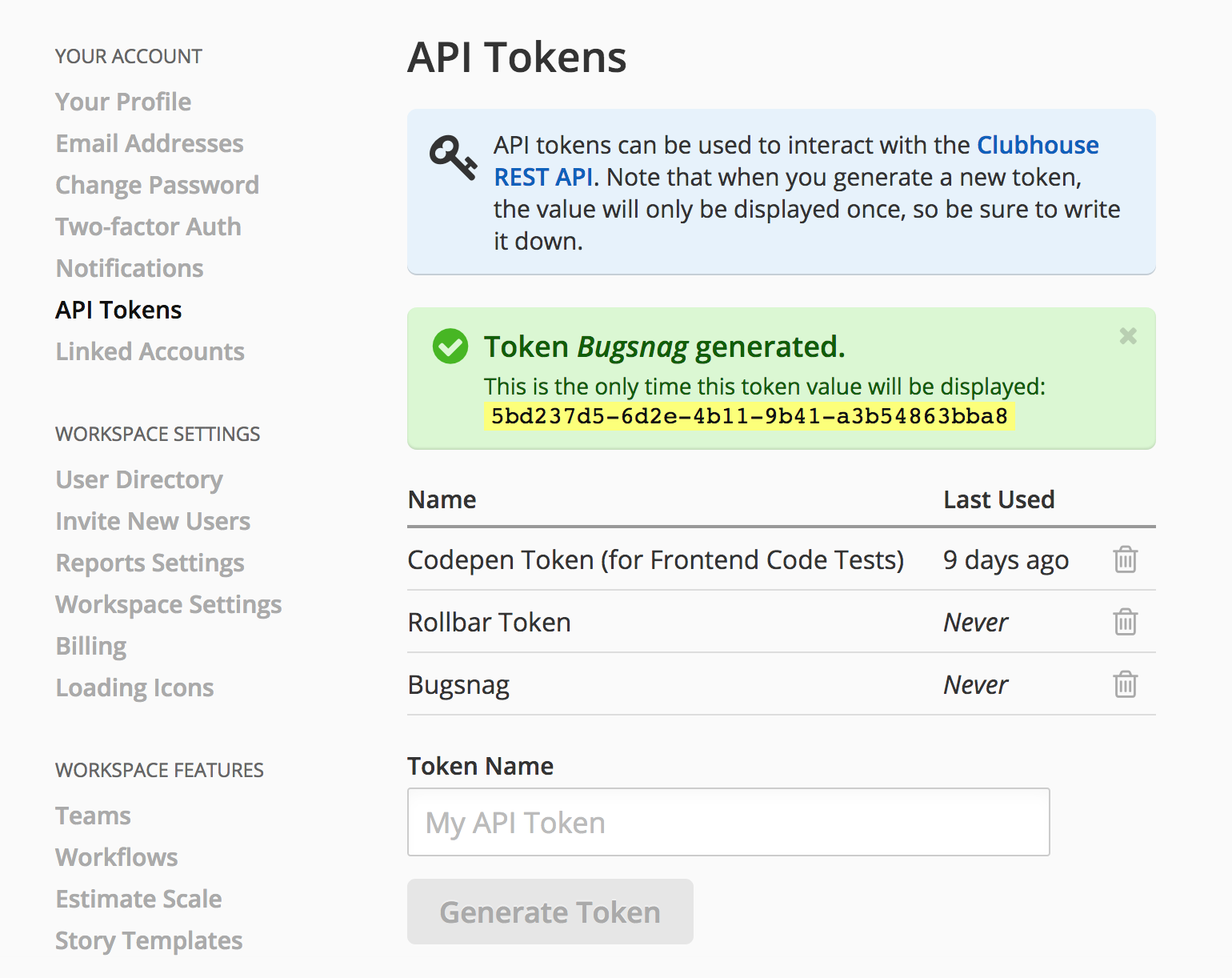
Step 1: Generate a Shortcut API Token
- Go to Settings > Account > API Tokens in Shortcut
- Click Generate Token
- Name it descriptively (e.g., “Sentry Integration”)
- Copy the token securely
Step 2: Configure in Your Error Tracking Tool
Navigate to the integrations/settings section in your error tracking tool and add the Shortcut API token.
Step 3: Map Projects and Configure Automation
Most integrations allow you to:
- Map error tracking projects to Shortcut Teams/Projects
- Set default Story type (usually Bug)
- Configure automatic Story creation rules
- Set default workflow state and labels
Integration Setup Guides
Sentry
Sentry is an open-source error tracking tool that helps developers monitor and fix crashes in real time. The Sentry integration supports bi-directional sync.
Features:
- Create new Shortcut Stories from Sentry issues
- Link Sentry issues to existing Stories
- Auto-complete Sentry issues when Stories reach Done state
Setup:
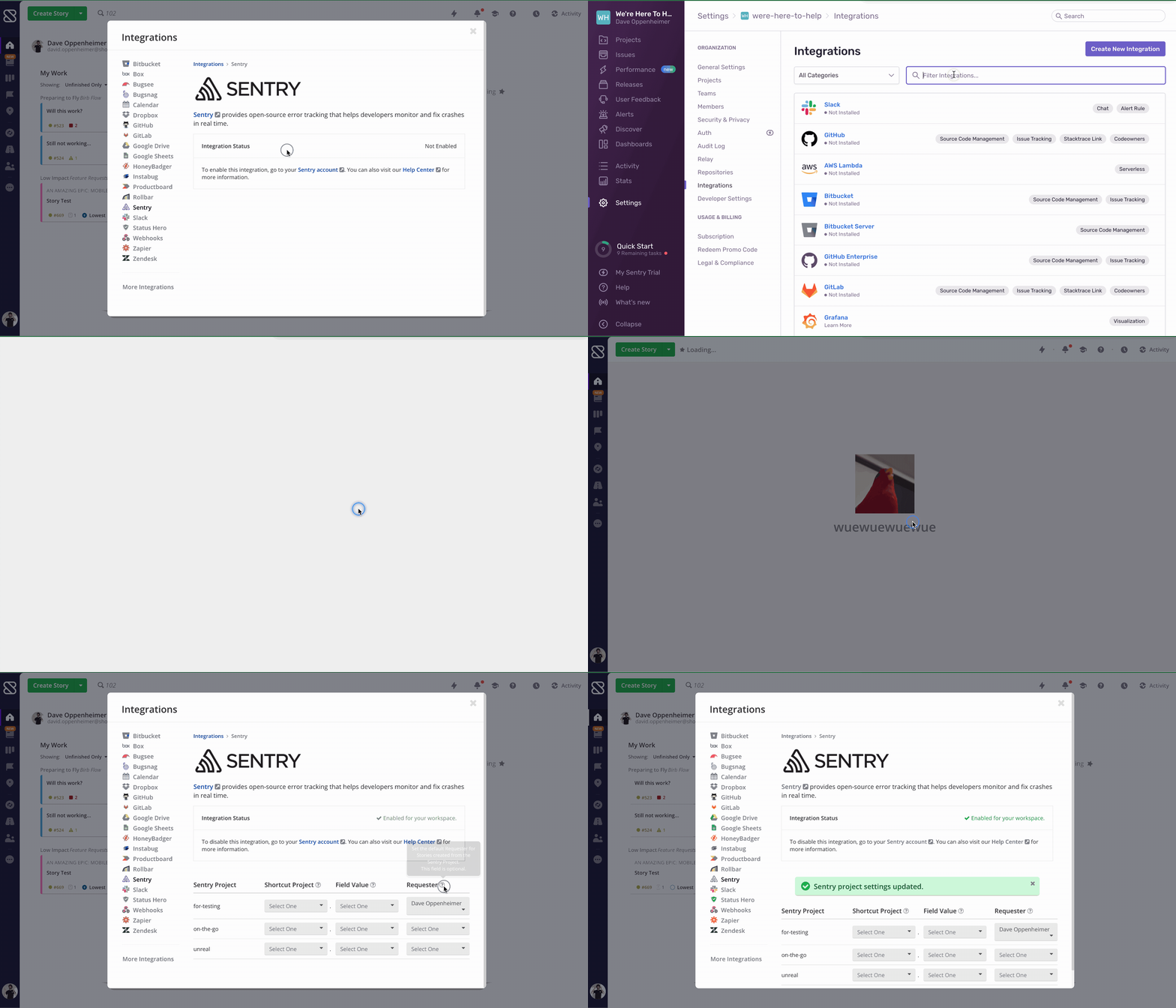
- In Shortcut, go to Settings > Integrations > Sentry and enable the integration
- Click the Sentry account link to open Sentry
- In Sentry, go to Settings > Integrations, find Shortcut, and click Install
- Grant the required permissions (Shortcut → Sentry and Sentry → Shortcut)
- Configure default Project, Custom Field, and Requester for each Sentry project
Bugsnag
Bugsnag provides error monitoring for mobile, web, and server applications.
Setup:
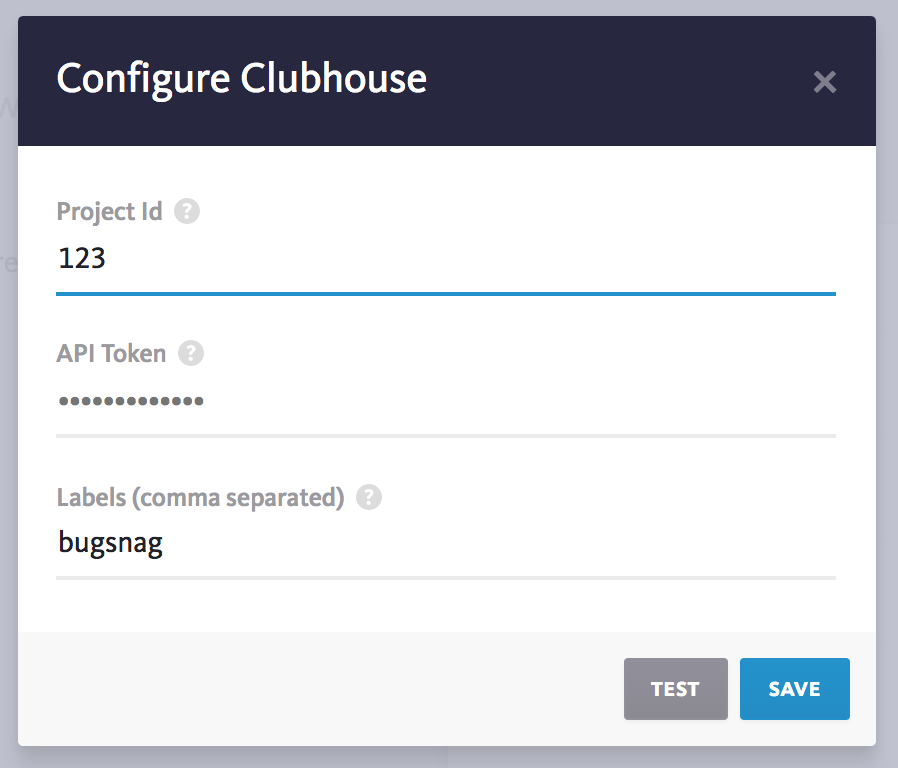
- Generate a Shortcut API token (see Step 1 above)
- Copy your Shortcut Project ID from the Project settings
- In Bugsnag, go to Project Settings > Configure Integrations > Available Integrations
- Select Shortcut and enter your API token
- Enable auto-creation in Automation settings if desired
Rollbar
Rollbar provides error monitoring, alerting, and analytics for software teams.
Setup:
- Generate a Shortcut API token
- In Rollbar, go to User Settings > Connected Accounts > Shortcut tab
- Enter your API token and save
- Go to Projects > [Your Project] > Notifications
- Configure the Shortcut channel with your Workspace name
- Set Project, Epic, State, and Label defaults
- Optionally, create Rules for automated Story creation
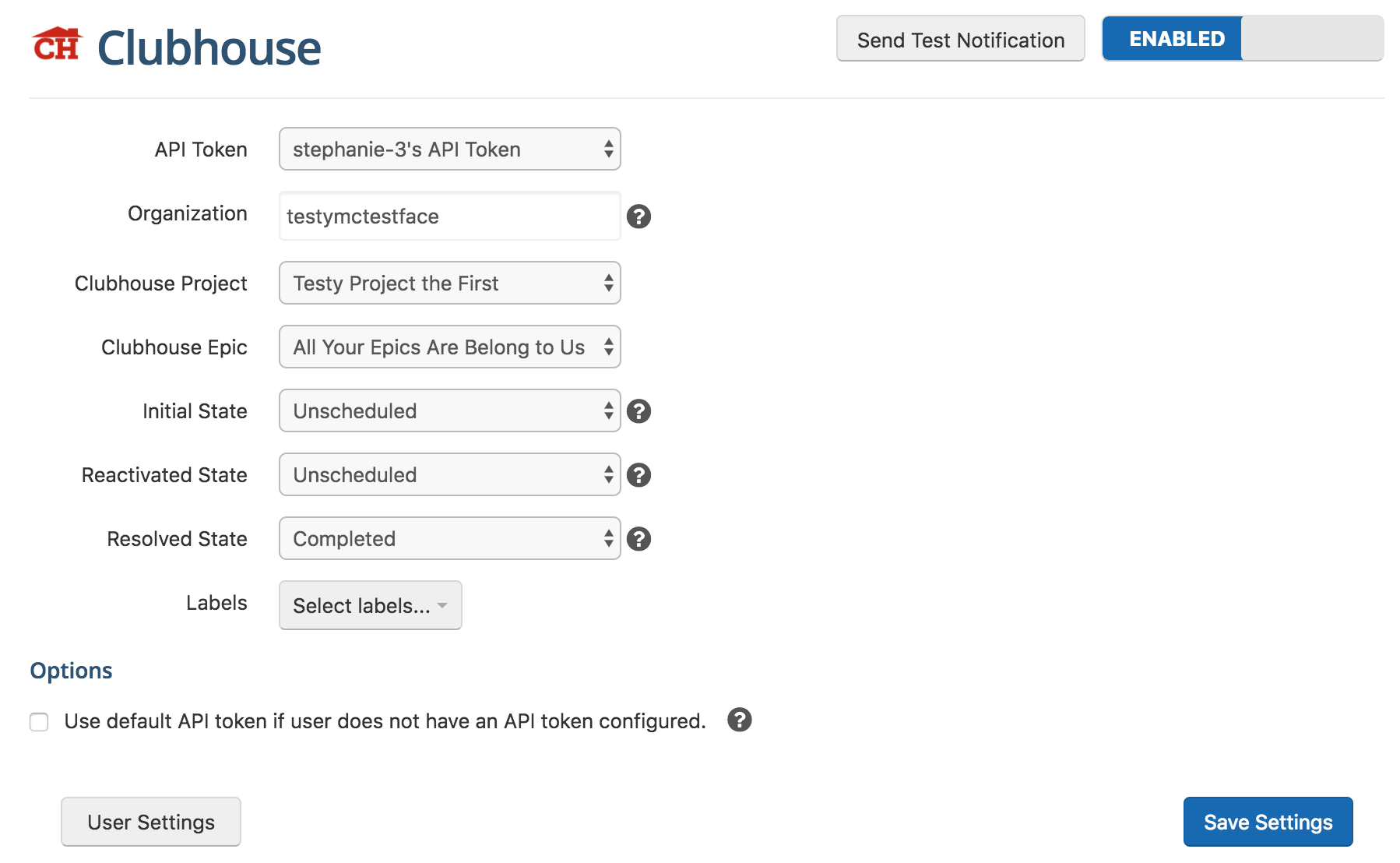
Note: Workspace name must match your Shortcut URL exactly (case-sensitive, no spaces).
Honeybadger
Honeybadger provides exception monitoring for Ruby, Python, PHP, and JavaScript applications.
Setup:
- Generate a Shortcut API token
- In Honeybadger, go to Settings > Integrations
- Find Shortcut and click Configure
- Enter your API token and Workspace slug
- Configure default Project and Story type
Bugsee
Bugsee captures video, network logs, and console output for mobile and web applications.
Setup:
- Generate a Shortcut API token
- In Bugsee, go to Settings > Integrations
- Add Shortcut integration with your API token
- Configure project mapping and automation rules
Instabug
Instabug provides bug reporting and crash analytics for mobile applications.
Setup:
- Generate a Shortcut API token
- In Instabug dashboard, go to Settings > Integrations
- Select Shortcut and enter your API token
- Map Instabug projects to Shortcut Teams/Projects
Additional Integrations
The following integrations are available through the Shortcut Integrations page:
| Integration | Description |
|---|---|
| Marker.io | Turn website feedback and bug reports into Shortcut Stories |
| Feedbucket | Convert website feedback into actionable Stories |
| FireHydrant | Create Stories from incident management workflows |
| Rootly | Export incident action items to Shortcut |
| Spike.sh | Create Stories with incident details |
| Luciq | Create Stories from Luciq issues |
Best Practices
Story Configuration
- Use Bug type - Configure integrations to create Stories as Bug type
- Add labels - Use labels like “error-tracking” or the tool name for filtering
- Set priority - Map error severity to Shortcut priority when possible
- Include context - Ensure error details, stack traces, and user info are included
Workflow Automation
- Auto-create selectively - Only auto-create Stories for errors above a threshold
- Deduplicate - Most tools group similar errors; avoid creating duplicate Stories
- Link existing Stories - Before creating new Stories, check if related work exists
Team Practices
- Triage regularly - Review error-created Stories in daily standups
- Close the loop - When fixing bugs, update both Shortcut and the error tracker
- Monitor trends - Use error counts to identify systemic issues