➡️ Shortcut Open Agents is in closed beta. To have it enabled in your workspace, contact support@shortcut.com. Functionality and behavior may change before general availability.
Overview
Shortcut Open Agents are AI teammates and automations that your team builds and brings into Shortcut. An agent is a service you run. It connects to your workspace securely through OAuth, receives events from Shortcut as webhooks, and does its work through the Shortcut API. In Shortcut, you’ll find Shortcut Open Agents under Agents.
Once installed, an agent joins your workspace with its own name, avatar, and @-handle. Depending on how you build it, your team can:
- Assign it work. Make the agent an owner of a Story or Epic.
- @-mention it. Ask the agent for help in a comment or description.
- Follow its progress. Watch the agent work, ask questions, and share results in an agent session in the Activity Feed.
- Let it watch for changes. React automatically when Stories, Epics, Iterations, Labels, Projects, or Teams change.
- Share it with your Organization. Every workspace in your Organization that’s in the beta can install an agent you build.
Agent Sessions
Agents can use agent sessions to work in the open. When you assign, @-mention, or reply to an agent that uses sessions, Shortcut opens a session on the Story or Epic. The session appears in the Activity Feed and shows:
- What the agent is working on, as it works
- Questions the agent needs you to answer, sometimes with options to choose from
- The agent’s result, with any links it shares, such as a pull request
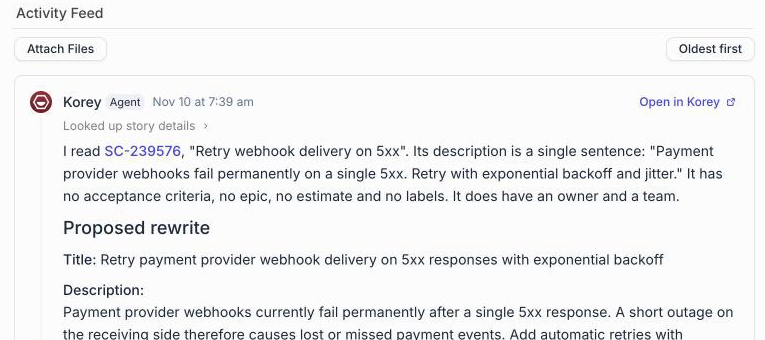
Reply in the session to answer a question or ask a follow-up, and the agent picks up where it left off. You can stop a running session at any time.
Agents that don’t use sessions still receive assignments and @-mentions, and usually answer with a comment.
Agents Calling Other Agents
A Shortcut Open Agent can hand work to another agent the same way you do, by @-mentioning it or assigning it to a Story or Epic. A few limits apply:
- The agent it calls must use agent sessions. Agents that don’t use sessions ignore requests from other agents.
- An agent never triggers itself.
- Once a Story or Epic has had 6 sessions in an hour, agents can’t start new sessions there, though people still can. This stops two agents from calling each other endlessly.
- Each agent can have at most 10 sessions on one Story or Epic in an hour, however they start.
These numbers are subject to change as we exit beta.
What Shortcut Open Agents Can Do
Use a Shortcut Open Agent for the work and workflow rules that are unique to how your team operates. For example:
- Move a Story back to its previous state when it’s started without an estimate, and leave a comment explaining why
- Remind whoever creates a Story to add it to a Team
- Hand a Story off to a coding agent and report back when the pull request is ready
- Keep fields, labels, or workflow states in sync as work changes
- Trigger actions in external tools when Stories or Epics are created or updated
Build a Shortcut Open Agent
-
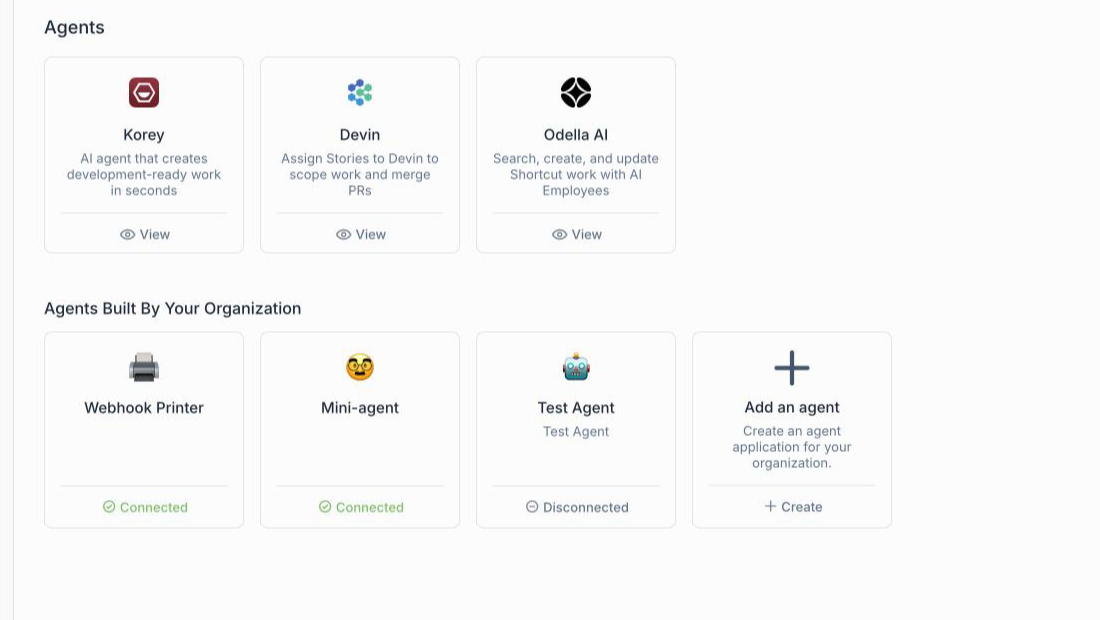
Open Agents in the sidebar and click Add an agent under Agents Built By Your Organization. Give your agent a name and an @-handle.
-
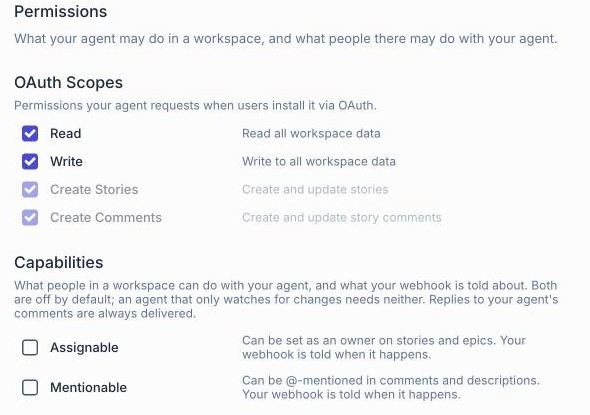
Choose the OAuth scopes your agent needs and its capabilities. Turn on Assignable to let people make it an owner of Stories and Epics, and Mentionable to let people @-mention it. An agent that only watches for changes needs neither. Then click Create Agent.
-
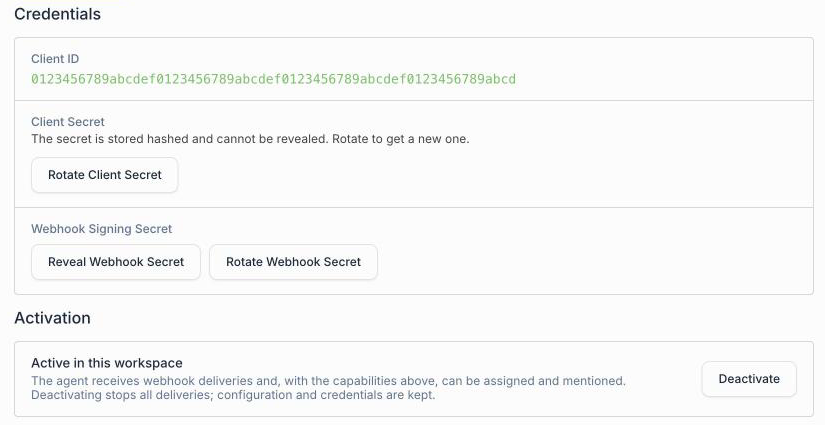
Save the client ID and client secret. Shortcut shows the client secret only once. The webhook signing secret is in the agent’s Credentials section.
-
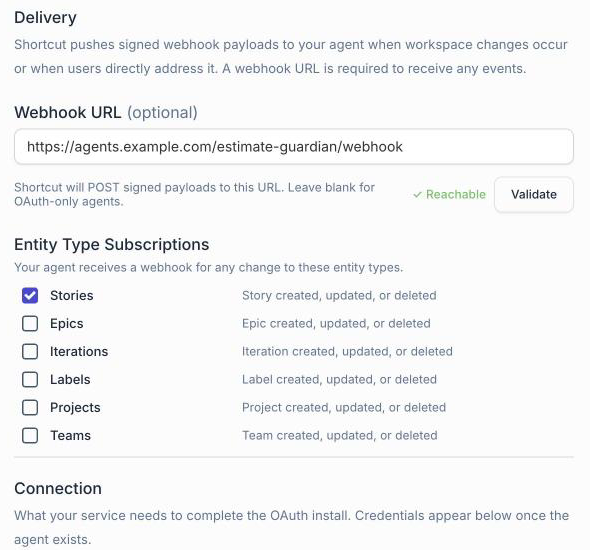
Build your agent’s service. Add its OAuth redirect URL under Connection and its webhook URL under Delivery, then click Validate. The webhook URL must use HTTPS. Once it validates, choose the changes your agent should watch.
-
Activate the agent in your workspace from its Activation section. A workspace admin needs to do this, and your service needs to be running to finish connecting.
The @shortcut/client library handles OAuth, token refresh, and webhook verification for you. To use agent sessions, your agent turns them on through the Shortcut API after it connects. The Devin Bridge example agent shows how.
A few tips:
- Respond to webhooks quickly and do slow work in the background. Shortcut waits only briefly for a response.
- Tunnel URLs, such as ngrok, are fine while you test. Move to a permanent HTTPS host before you ask us to share your agent outside your Organization.
Install and Remove an Agent
Only workspace admins can install or remove an agent.
As soon as you create an agent, it appears under Agents Built By Your Organization, in Agents and in Settings → Integrations, for every workspace in your Organization that’s in the beta.
- In the workspace that built the agent, open its page and click Activate in the Activation section.
- In other workspaces, open its card and click Connect.
The agent joins your workspace with its own name and @-handle, and it can be assigned work or @-mentioned if its capabilities allow.
To remove an agent, click Deactivate on its page, or Disconnect on its card in other workspaces. The agent stops receiving events from your workspace and can no longer act in it. Work already assigned to it stays assigned.
Want to share your agent with customers outside your Organization? Agents shared beyond your Organization need to be reviewed by Shortcut first. Reach out to support@shortcut.com to get started.
Example Agents
Want a head start? Our open-source example agents are ready to deploy and adapt:
- Estimate Guardian: Moves a Story back when it’s started without an estimate, and comments to let the person know.
- Team Cop: Comments when a Story is created or started without a Team.
- Devin Bridge: Relays agent sessions to your own Devin organization, so you can assign it work and follow Devin’s progress, questions, and pull requests in Shortcut. It’s a reference agent, not an official Devin integration.
- Quote Agent: A simple starter agent that replies when it’s assigned, mentioned, or replied to.