Overview
The Shortcut Zapier integration currently allows you to create Shortcut Stories from a defined Zapier Trigger. Follow these instructions to set up the integration.
Linking Shortcut App to Zapier
-
In Shortcut, navigate Settings > API Tokens and create a token for the Zapier integration. Copy this token.
-
Go to your Zapier dashboard and navigate to the My App section. Click the Add Connection button in the upper right and search for Shortcut.
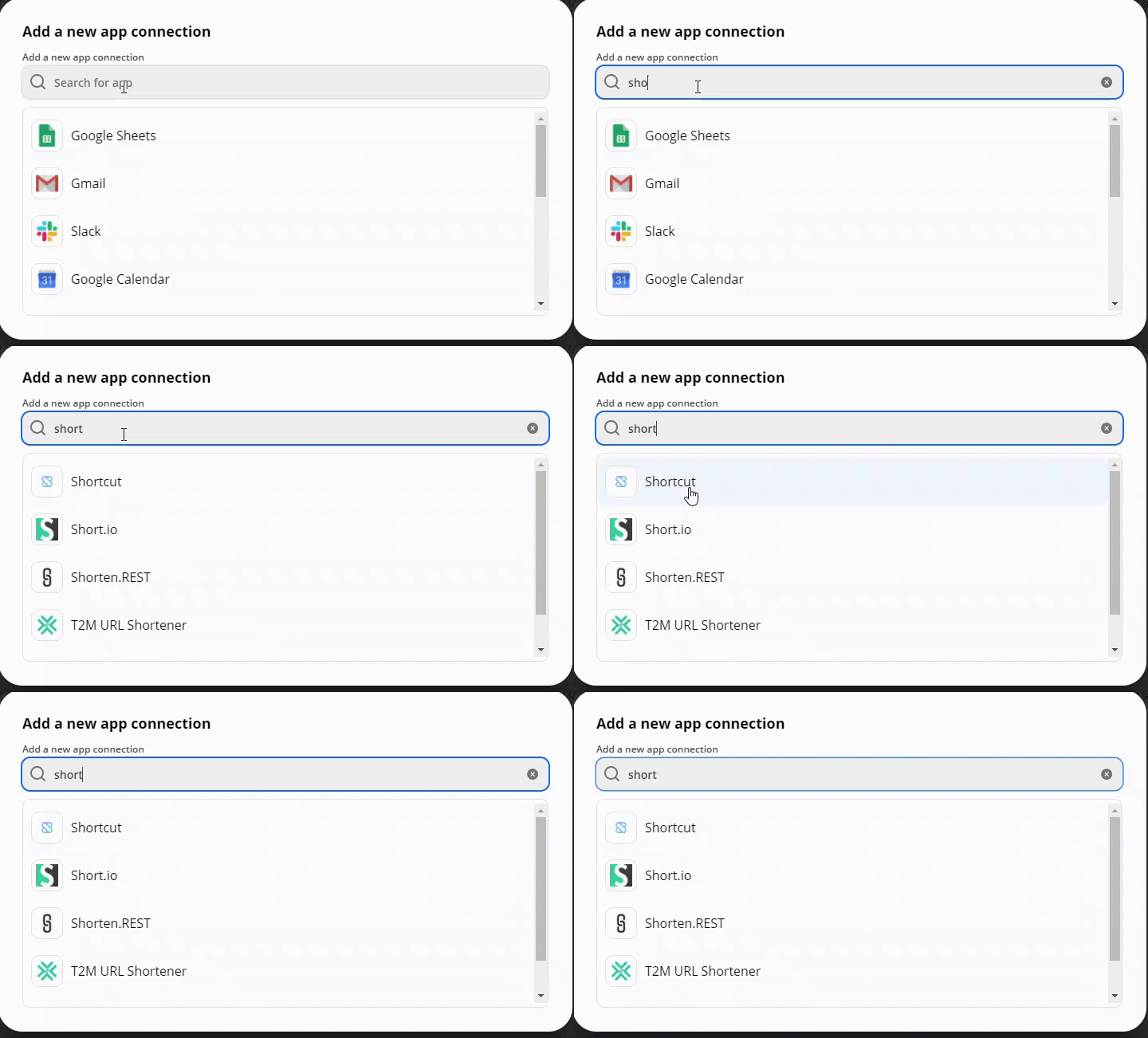
-
You will then be asked to enter the API token from the Shortcut Workspace. Paste the token copied in step 1 here.
-
After this, you should see the Shortcut app linked to your Zapier account.
Make a Zap with the Shortcut App
Click the Make a Zap! button on the top right corner. You’ll need to set up a “Trigger” and an “Action”, which is currently only scoped to creating a new Shortcut Story.
After you select the source trigger app and the desired event, you’ll move to step 2 and choose the Shortcut app:
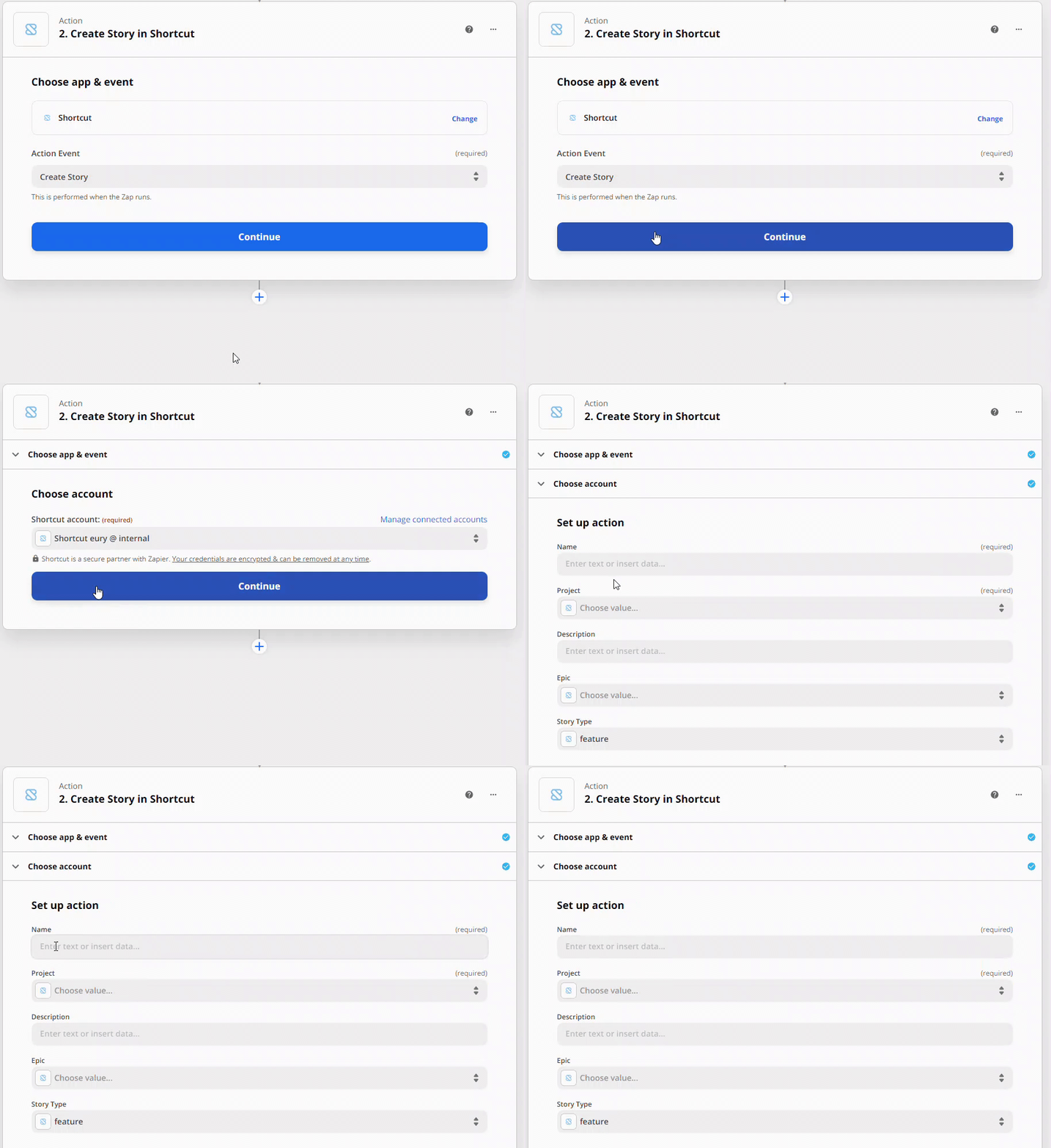
You’ll be able to format your created Stories however you want. Story Name and Workflow are the only required fields but you may also choose to specify Teams, Epics, add a description and choose story type, etc.
Once completed, you will be prompted to Test & Continue the Zap.
This test should have successfully created a Story via Zapier. Go check it out on Shortcut!
Lastly, we now need to turn on this Zap so that this happens automatically. Simply click on Retest & Continue after the test has been performed.
This will now take you to the screen to turn on the Zap!