Overview
An Organization can have a collection of Workspaces. Workspaces are independent of each other. You can have multiple Workspaces, and you will be billed according to the collective user count in each Workspace.
Creating a New Workspace
- Click in the upper left-hand corner of the app
- Click View All from the drop-down menu
- Select Add Workspace to Organization next to the Organization you want that Workspace to be added under
You’ll be taken to a screen where you’ll see a message stating that you’re creating a Workspace and listing what Organization it’s being created under. This is a good way to confirm that:
- You’re creating a Workspace (and not an Organization)
- You’re creating a Workspace under the correct Organization
Once you’ve named your Workspace and chosen a URL for it, click Finish to create it. You’ll be taken to your new Workspace, where you can go through the product tour again or get started with setting it up.
Deleting a Workspace
You must be the Workspace Owner to perform this action. First make sure that you have manually backed up, copied, or saved any relevant information from this Workspace.
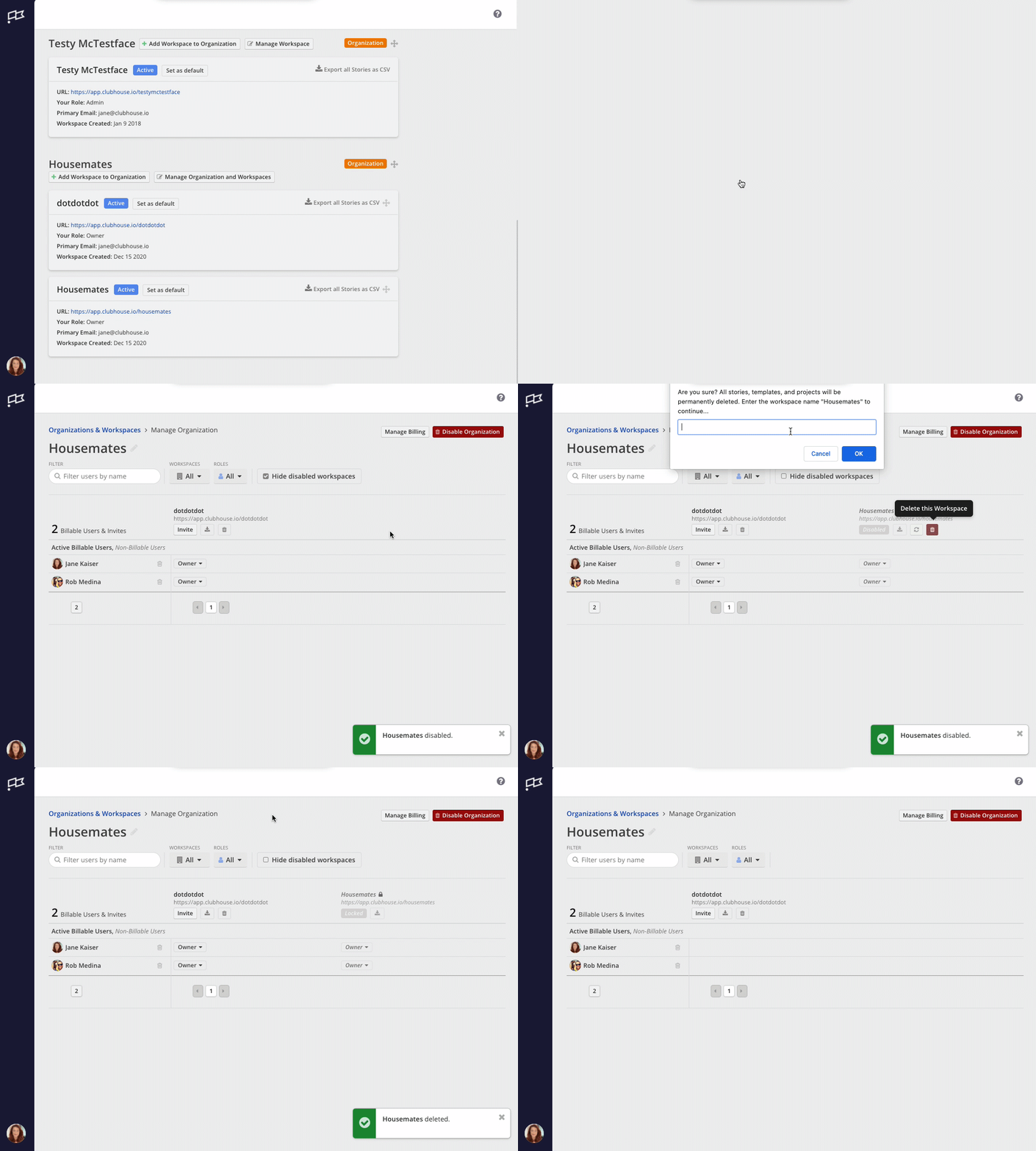
- Head to your Organization Dashboard
- Look for the button to Manage Organization and Workspaces within your desired Workspace
- Use the trashcan icon to move the Workspace to a disabled state
- If necessary, uncheck the option to “Hide Disabled Workspaces”
- Use the newly appeared red trashcan to delete your Workspace permanently
- Type to confirm the name of the Workspace being deleted (case sensitive)
- The Workspace will begin to be deleted, showing you a “Locked” Workspace as the deletion script completes
- Refresh the page to see the Workspace has been deleted
Managing Workspaces
Free plan accounts only have access to one (1) Workspace for the entire Organization. For additional access, please consider upgrading to a paid plan.
An Organization is a collection of Workspaces that are all under one umbrella, and is usually mapped to the name of your first Workspace.
Workspace Best Practices
Organizations on a Business or Enterprise plan have the ability to create more than one Workspace. However, it’s important to know the implications of separate Workspaces so you can determine what setup makes the most sense for your organization.
The answer in short: Most of the time it makes sense for an organization to have only one Workspace. This means everyone can collaborate in one space and has the ability to work across teams and see org-wide progress on projects.
Key Considerations
- No reporting across Workspaces - For most organizations, having a global view of reporting and metrics is key to success. Consider this before creating more than one Workspace.
- No private Stories, Epics, or Objectives - Currently there isn’t the ability to make Stories, Epics, or Objectives private. If there is sensitive information that needs to be private from parts of your organization, separate Workspaces could make sense.
When Multiple Workspaces ARE Recommended
- Sandbox Workspace - Good for Owner or Admin testing needs
- Sensitive information - When information can’t be shared with the entire organization (examples: Legal, HR, Finance)
- Agencies with separate clients - An Enterprise plan would be required for this use case as it allows for unlimited Workspaces
When Multiple Workspaces are NOT Recommended
- Workspaces broken out by team
- Workspaces by initiative
- Workspaces for different products