Overview
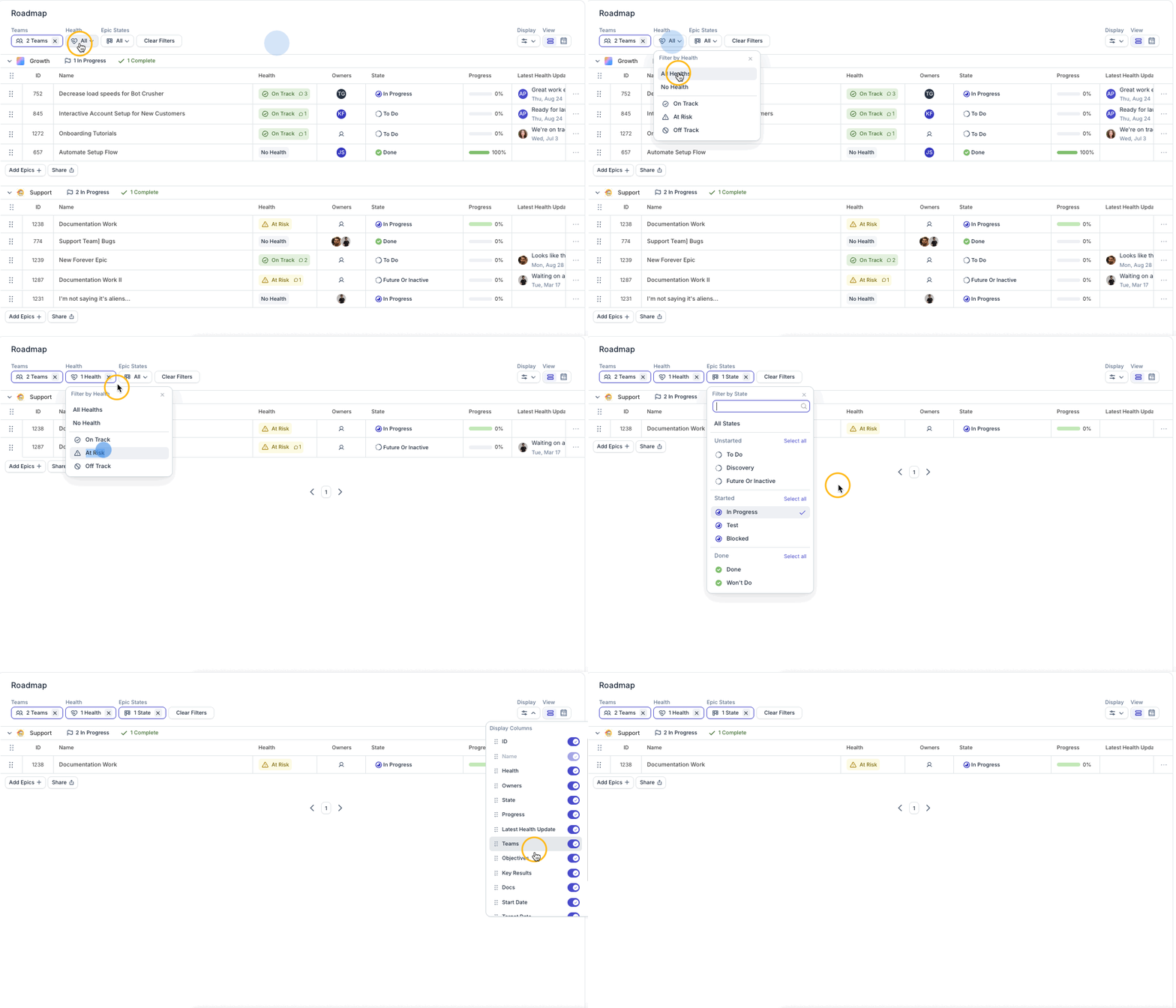
The Roadmap Table view offers a unique way to plan and share your product planning close to and synced with the work that’s happening. Access the Roadmap via the options in the sidebar and if you do not see the Table view, the options for Timeline and Table are in the upper right of the UI.
The Roadmap Table view is organized by Teams and structured by Epics. It is a curated way to show what’s in progress, upcoming, and being planned. Use scheduled or unscheduled Epics to showcase teams’ product strategies.
Using the Roadmap you can:
- Create an engaging, dynamic view of your product planning
- Plan and prioritize with views that stay up-to-date as your team completes work
- Help teams async communicate Roadmap progress, status, and reflect their teams’ focus
Curating Your Roadmap
Start by using the Add Epics option to:
- Build a team roadmap by adding Epics to a Team row
- Create a cross-team roadmap by adding an Epic to a Team grouping outside its assigned Team
Up to 40 Epics can be added to each team grouping. If you add more than 40, the 41st+ will not show up.
To support flexibility and encourage various use cases, similar to other tables in the UI, use filters to focus your Roadmap view on specific Teams, time ranges, or Epic states. Further, the columns can be customized based on your preferences of what’s shown/their placement in the table via the Display toggle.
If needed, you can also review/update an Epic’s Health and other key fields inline after adding the Epic, and adjust columns and filters.
Epic Health
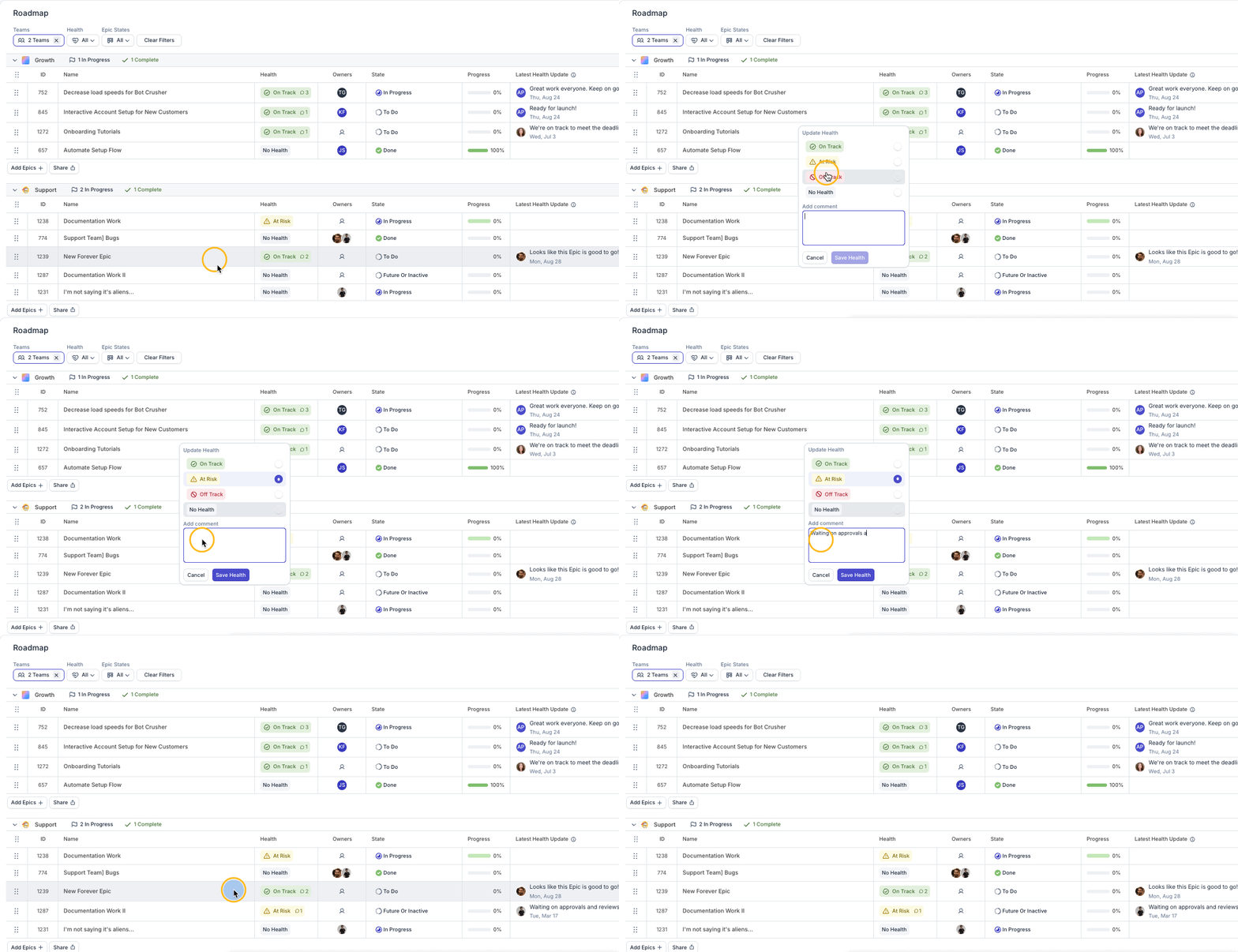
You can add or update the Health status with a contextual comment to indicate what is On Track, Off Track, At Risk, or No Health.
This allows users to quickly signal to anyone viewing an Epic on the Roadmap, Epics page, or the Epic itself where things are at and if there’s anything that needs to be discussed and engaged with.
Click on the Health of an Epic to add or adjust a status. You can also add a comment explaining the status update.
Timeline view
.png)
Use the Roadmap Timeline view to visualize Objectives and Epics over time. It helps you plan work, communicate priorities, and connect near-term delivery to larger goals.
Objectives and Epics appear on the timeline only when both Start date and End date are set.
Adjust the display
Use the view controls to switch between different time ranges and presentation styles. You can also hide dates, collapse Objective rows, or change grouping to focus the roadmap on the right conversation.
Presentation mode is useful when you want to review the roadmap live with teammates or stakeholders.
Filter and save a view
Use filters to focus on specific teams, timeframes, or work. After applying filters, copy or bookmark the page URL to save that exact live view. Sharing that URL will allow others to see the same filtered Roadmap view.
If sharing the URL, the receiving individual must be an active member of the Workspace to access that live Roadmap view.
Share a snapshot
Click Share to generate a shareable snapshot of the current roadmap. Choose a date range first. The preview matches your current timeline scale, such as Weeks, Months, or Quarters.
Reorder Objectives and Epics
Roadmap order follows priority. Priority is based on the order shown on the Objectives and Epics pages.
- Items near the top are treated as highest priority
- Items near the bottom are treated as lowest priority
Drag Objectives above or below each other to change their priority. Drag Epics within an Objective grouping to reprioritize them there.
Changes made in the Timeline view also update the order on the Objectives and Epics pages.
Change Objective or Epic dates
- Drag the body of an Objective or Epic bar to move the whole item. This updates both the Start date and End date together.
- Drag either edge of the bar to change one date at a time:
- Drag the left edge to change the Start date
- Drag the right edge to change the End date