Overview
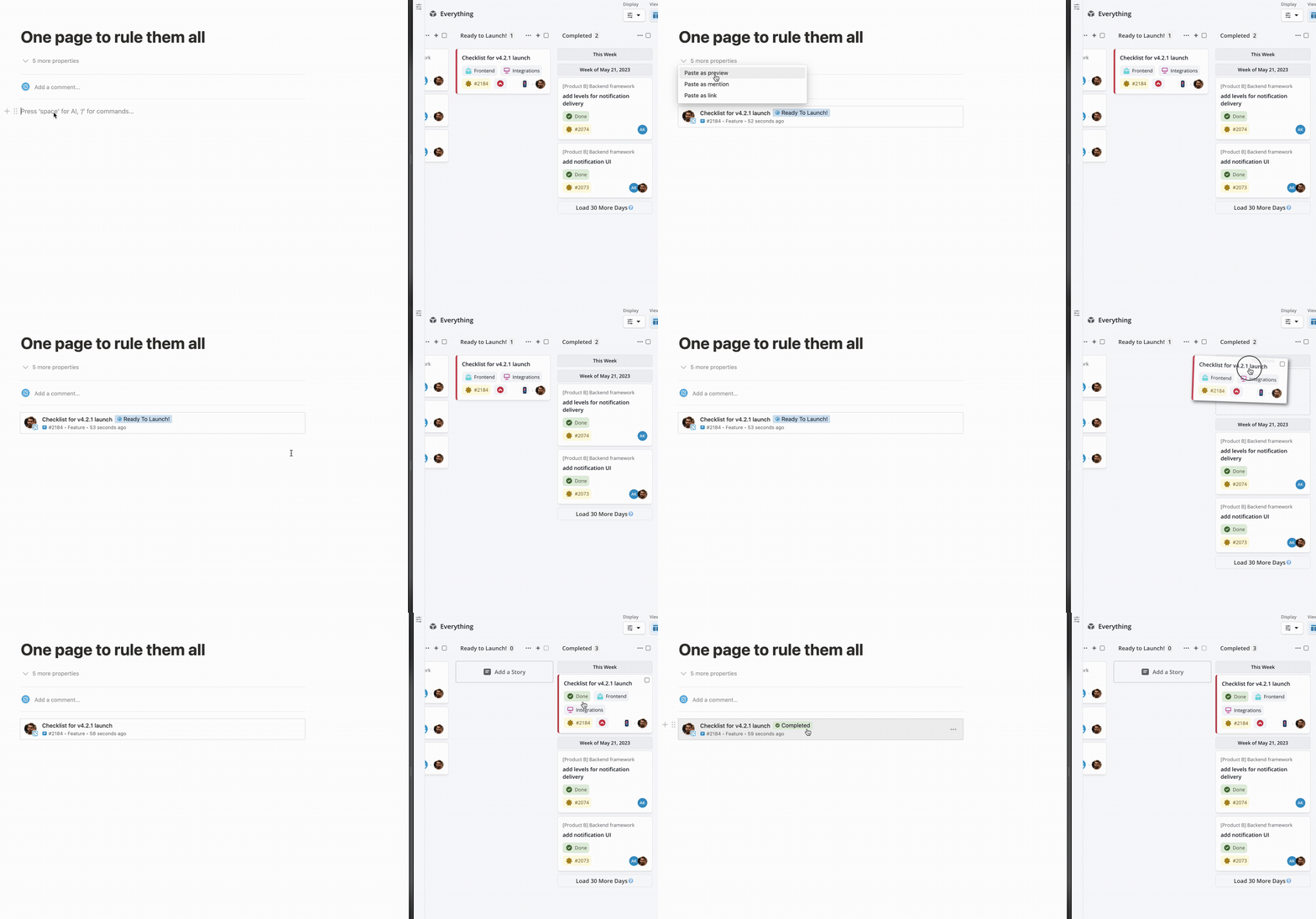
The Shortcut Notion integration transforms Shortcut URLs into live preview badges when pasted into Notion pages, keeping your teams in sync across both platforms.
Key Features
- Transforms Story, Epic, Objective, Iteration, and Doc URLs into preview badges when pasted into a Notion Page
- Includes entity name, status, ID, last activity, Team assignment, and Owner in Preview Badges
- Automatically updates linked entities if changes are performed in Shortcut
- Provides users with the option to connect the Notion Workspace to individual Shortcut Workspaces
Setting Up the Integration
Connecting Shortcut and Notion can be done via Notion’s end or through the integration panel in Shortcut.
Option 1: Paste a URL in Notion
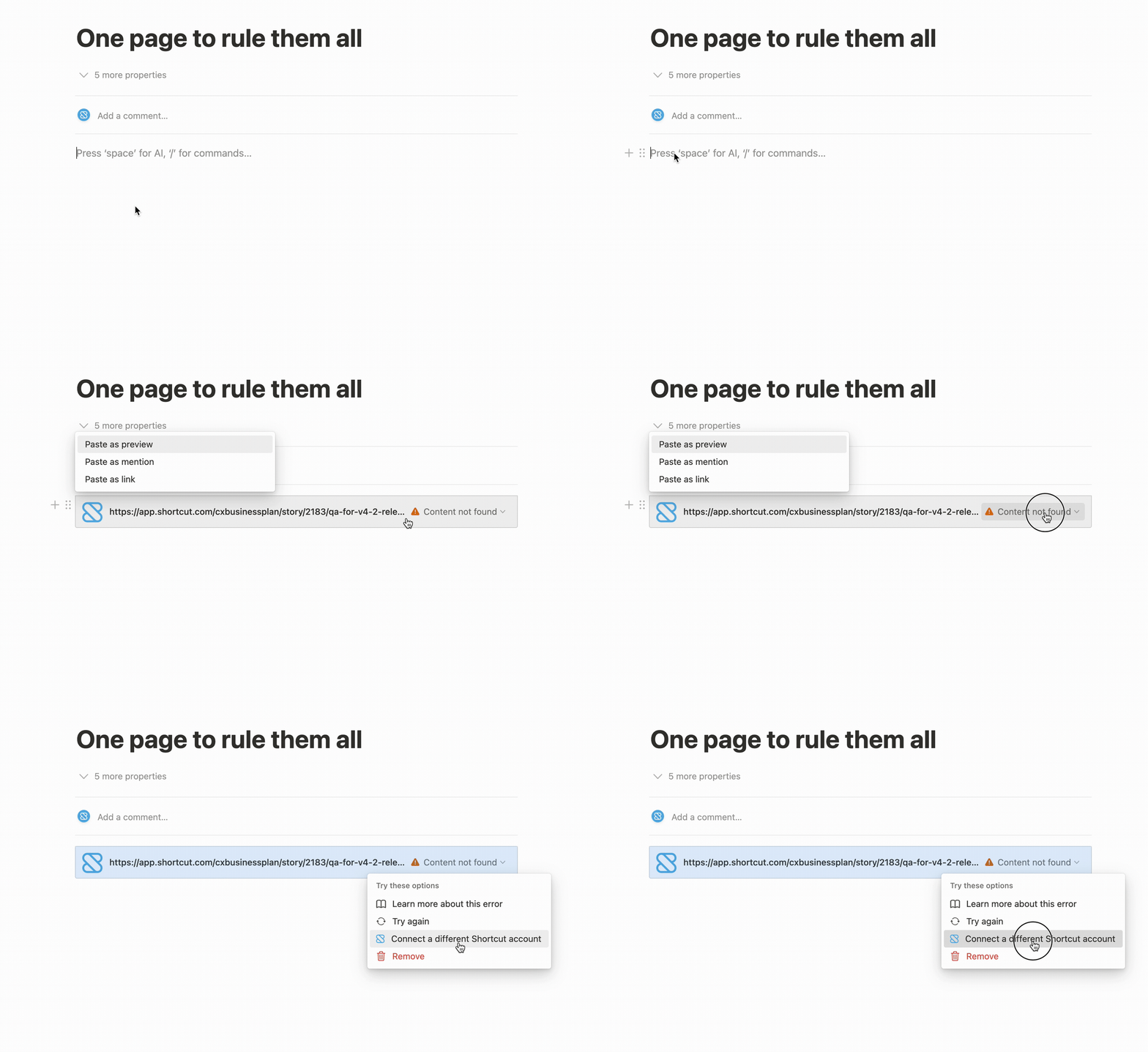
You can simply paste a URL to a Shortcut entity within a Notion Page which will prompt you to authorize the connection.
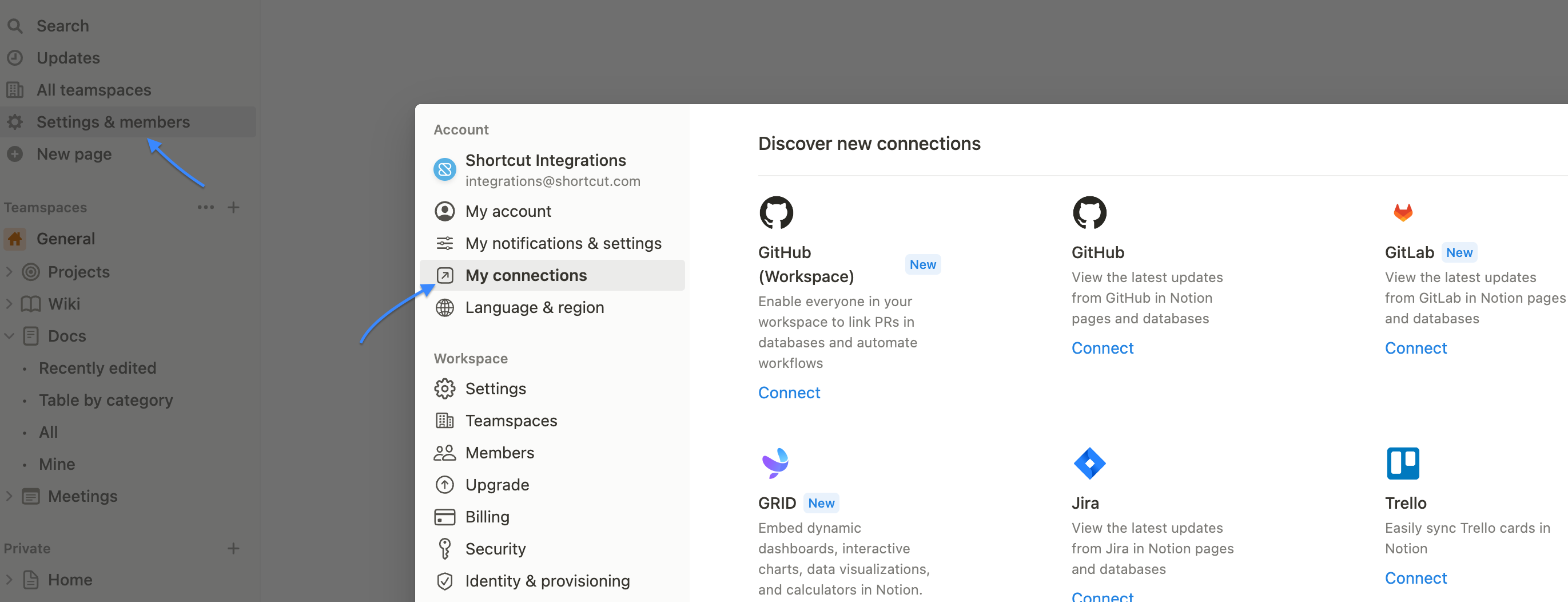
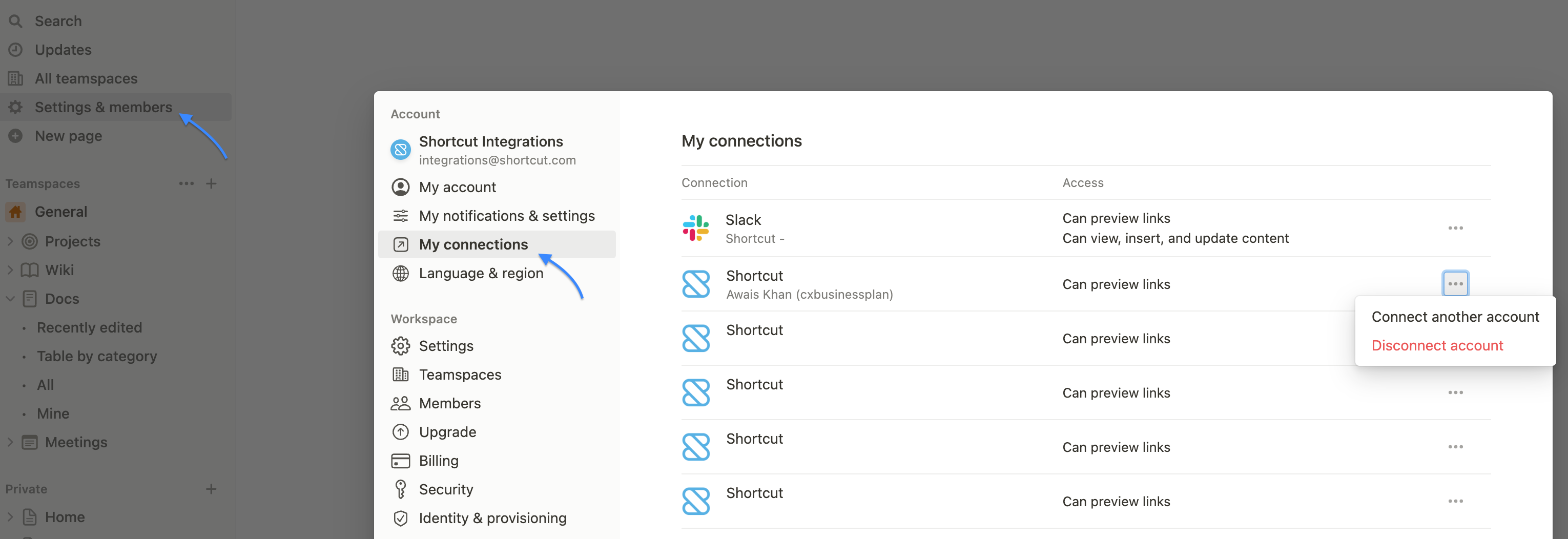
The connection can also be set up by navigating to Notion’s settings (Settings & members > My Connections > Shortcut):
Option 2: Connect from Shortcut
Navigate to Integrations > Notion to connect the Shortcut Workspace to the Notion Workspace:
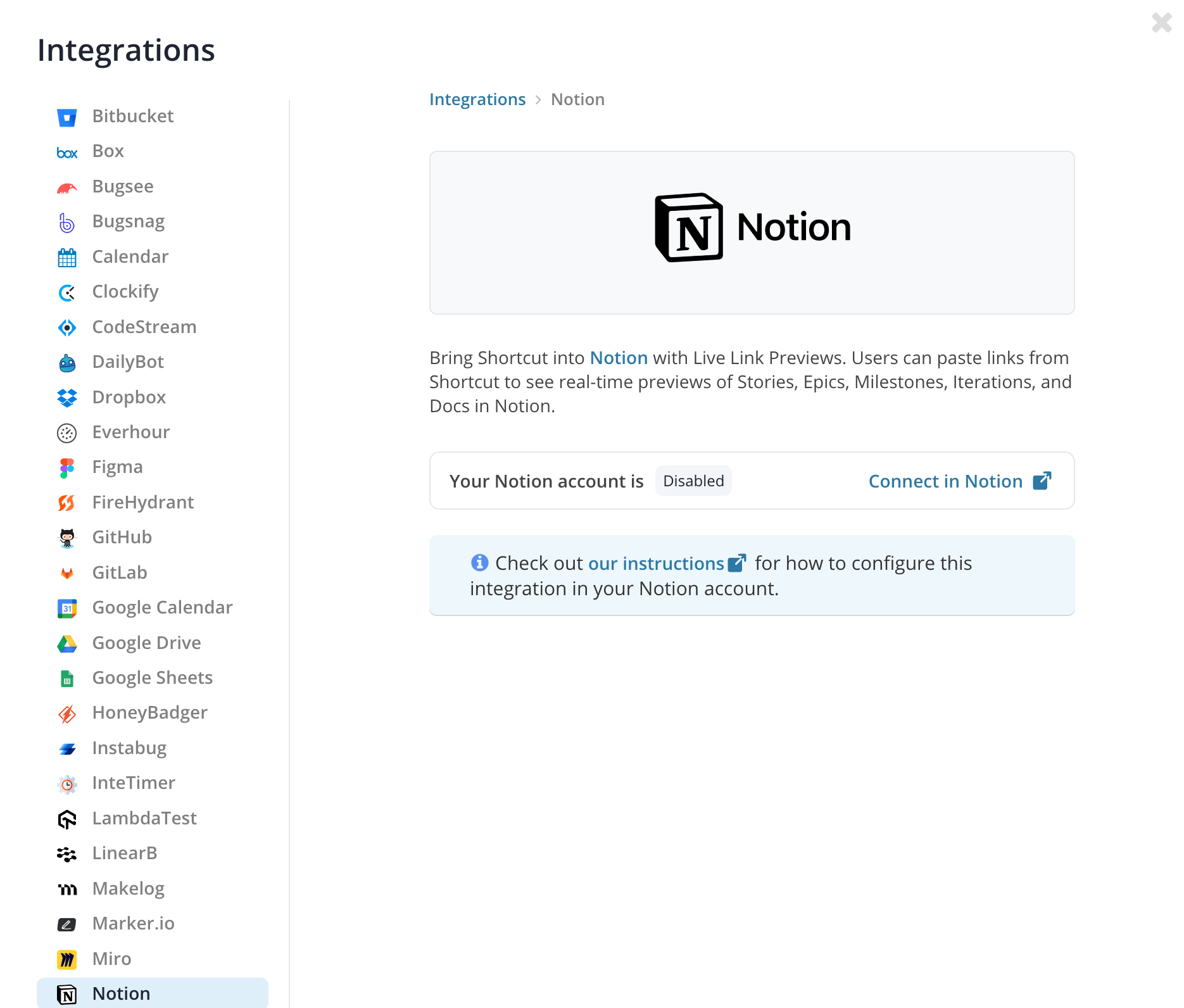
Once the connection is prompted, you can choose which Shortcut Workspace to connect to the Notion Workspace.
To connect additional Workspaces, navigate to Settings & members > My Connections in Notion and select the ellipsis (…) next to the established connection.
Live Preview Badges in Notion
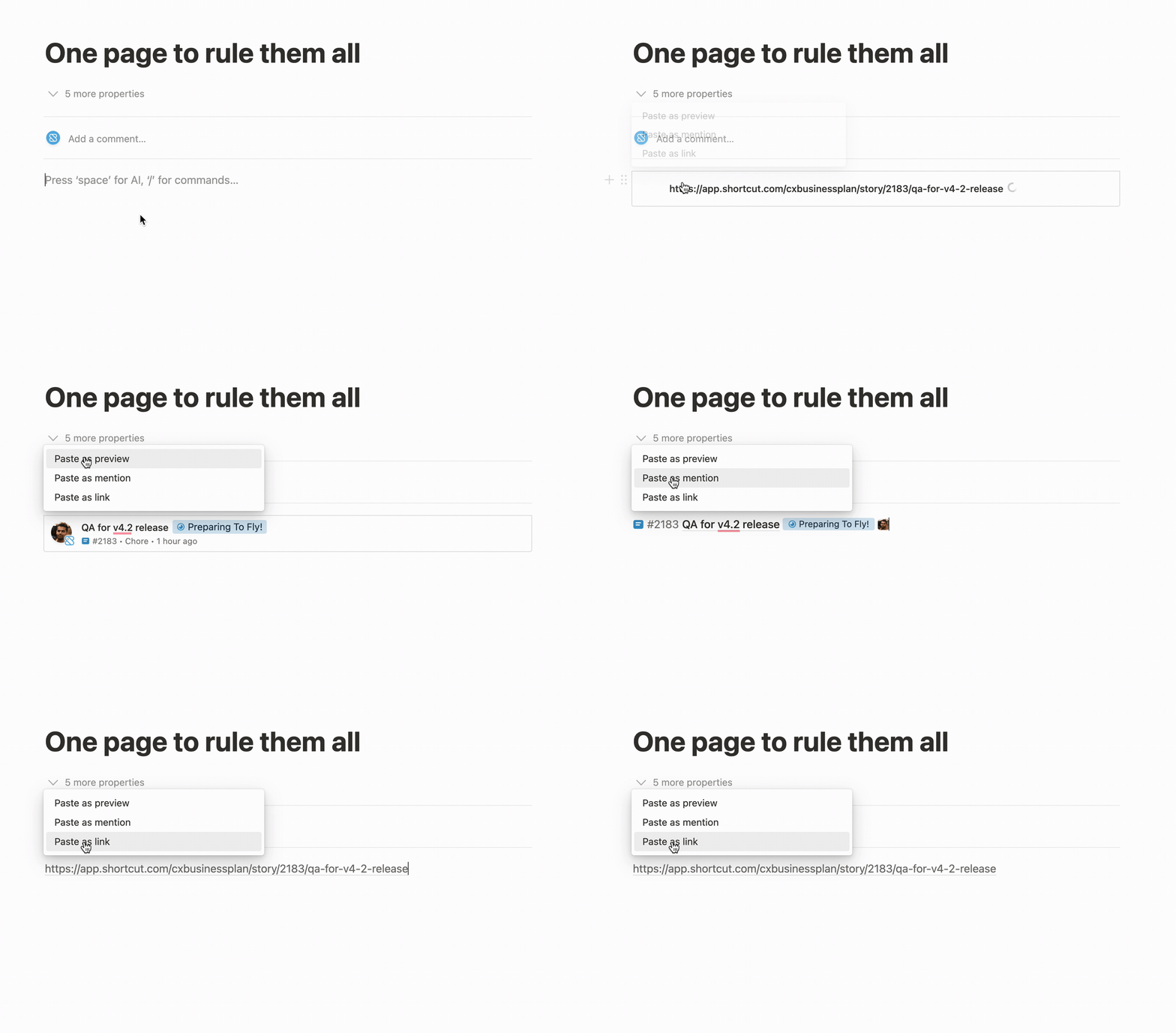
When pasting a URL from Shortcut into Notion, you’ll have the option of either creating a full preview, a minimal mention, or pasting the plain URL.
Removing the Integration
The Shortcut-Notion connection can be removed directly from Notion or through the integration panel in Shortcut.
From Notion: Navigate to Settings & Members > My Connections where you can remove specific Workspace connections
From Shortcut: Navigate to Integrations > Notion to remove the Workspace connection