Overview
Navigate to Settings>Workspace Settings to access:
- User Directory
- Invite New Users
- Import and Sync Data
- General Settings
- Billing
- Loading Icons
User Directory
If you’re an Owner or Admin and wish to view the Users within the Workspace (Active, Inactive, and Imported Users), the User Directory is a good starting point.
From this page, you can change someone’s role in your Workspace by using the dropdown next to the person’s name. You can also deactivate a user from this User Directory page.
Invite New Users
From the Invite New Users Workspace Settings page, Owners and Admins can:
Invite via Email Create Invite Links (for Member roles only) Invite using Google Contacts
Adjust Auto-join via Domain Settings
Update your Auto-join setting so anyone with your team’s email domain will be able to auto-join the workspace when they sign up.
Learn more about inviting users to your workspace
Import and Sync Data
There are several options for bringing data into Shortcut:
- Pivotal Tracker Importer script
- Jira Sync
- Auto-Import (specifically for Jira and Trello)
- CSV Importer (Shortcut Support assisted)
General Settings
General Settings is where an Admin can adjust a variety of Settings for a Workspace:
- Name
- Location
- UTC Offset
- Working Days
- Workspace Icon
Navigate to Settings > Workspace Settings > General Settings to update your Workspace name, website, location, and UTC offset.
Reports are rendered against the Workspace’s UTC offset.
Reach out to our support team if you’d like to change your workspace’s URL slug.
Working Days
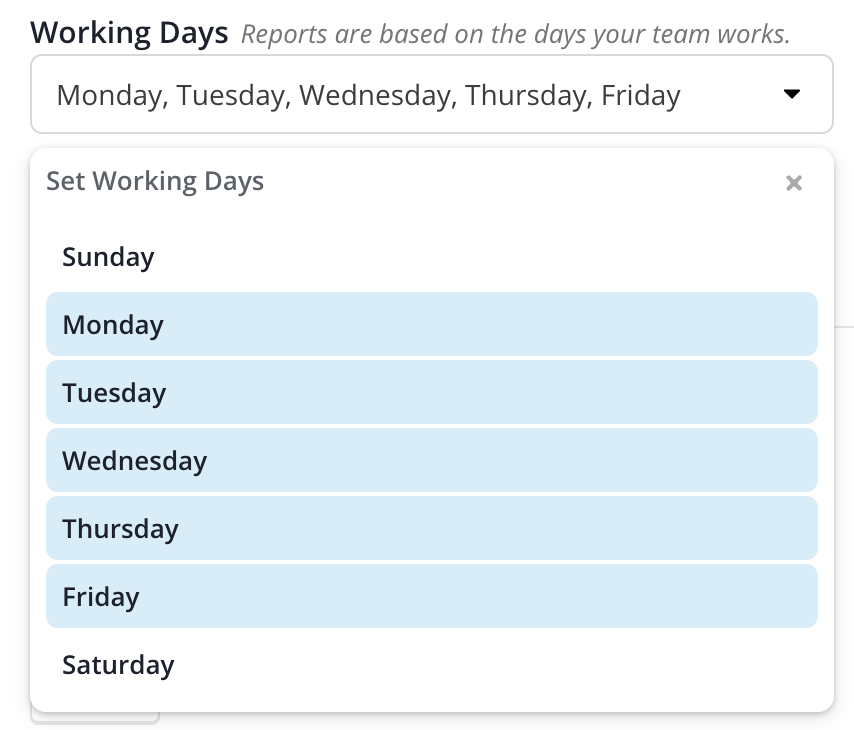
Some teams don’t work every day of the week, so counting reporting on off days is mostly unnecessary. Shortcut has a Workspace-level setting that allows an Owner or Admin to set certain Working Days.
All calculations, metrics, and lines on the Burndown and ARC (Added/Remaining/Completed) Charts take Working Days into account. The default Working Days are Monday through Friday, inclusive.
Workspace Icon
You can customize your Workspace with your own icon or company logo. Navigate to Settings > Workspace Settings > General Settings and upload the icon.
The icon must be 180px by 180px.
Billing
From the Billing Settings page, Owners and Admins can:
- Adjust Billing-related details
- Change the Plan type and frequency
- Update the Billing Contact
- Access past Invoices