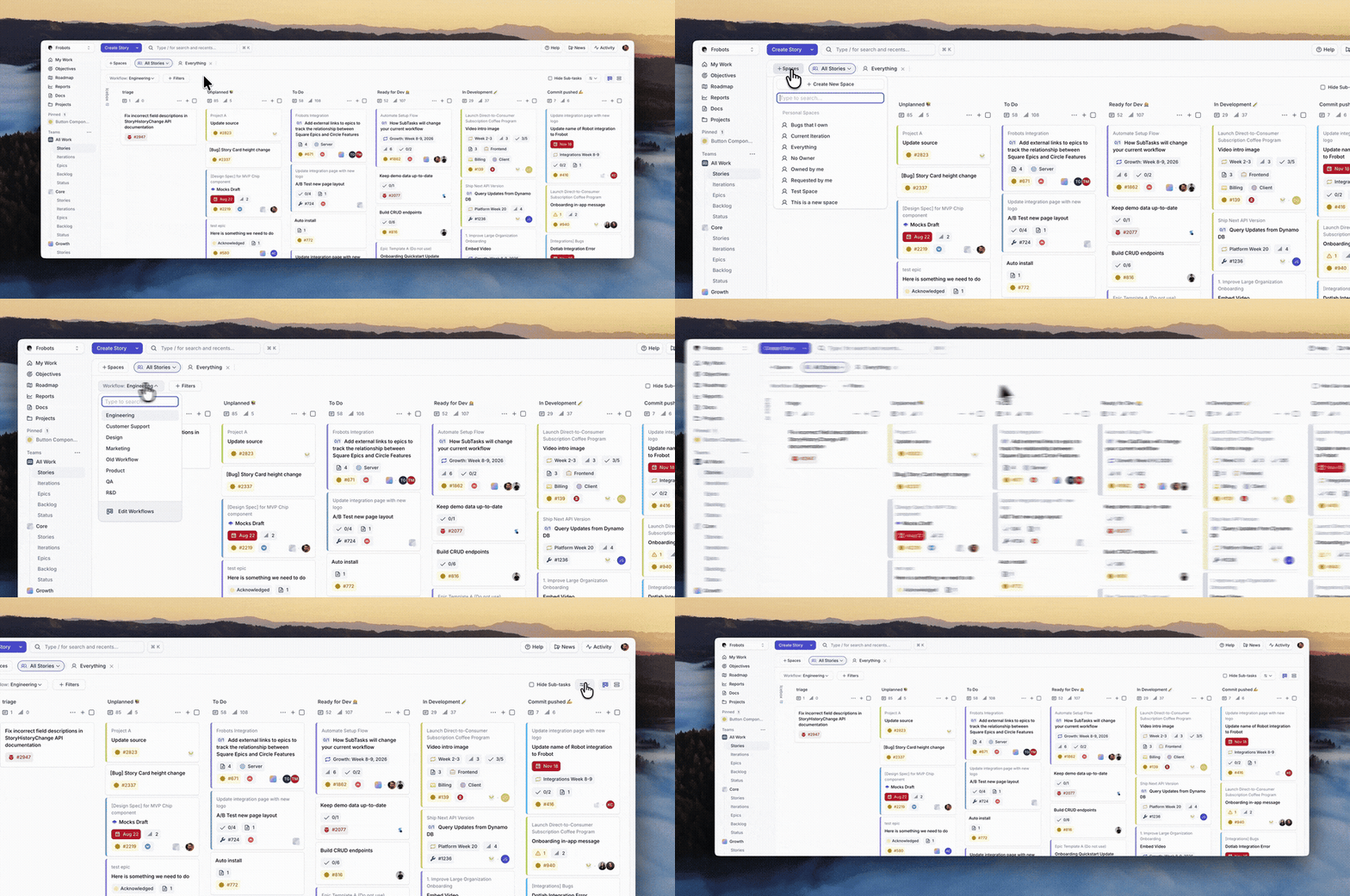
View Type
By default, all Stories appear in the Kanban view by Workflow state. The second type is the Table view, which allows you to group stories by several dimensions in the table. These view types can be changed via the View selector in the upper right corner of the page.
Filtering
The Stories page provides powerful filtering options to help you find and organize your work.
Add and Remove Filters
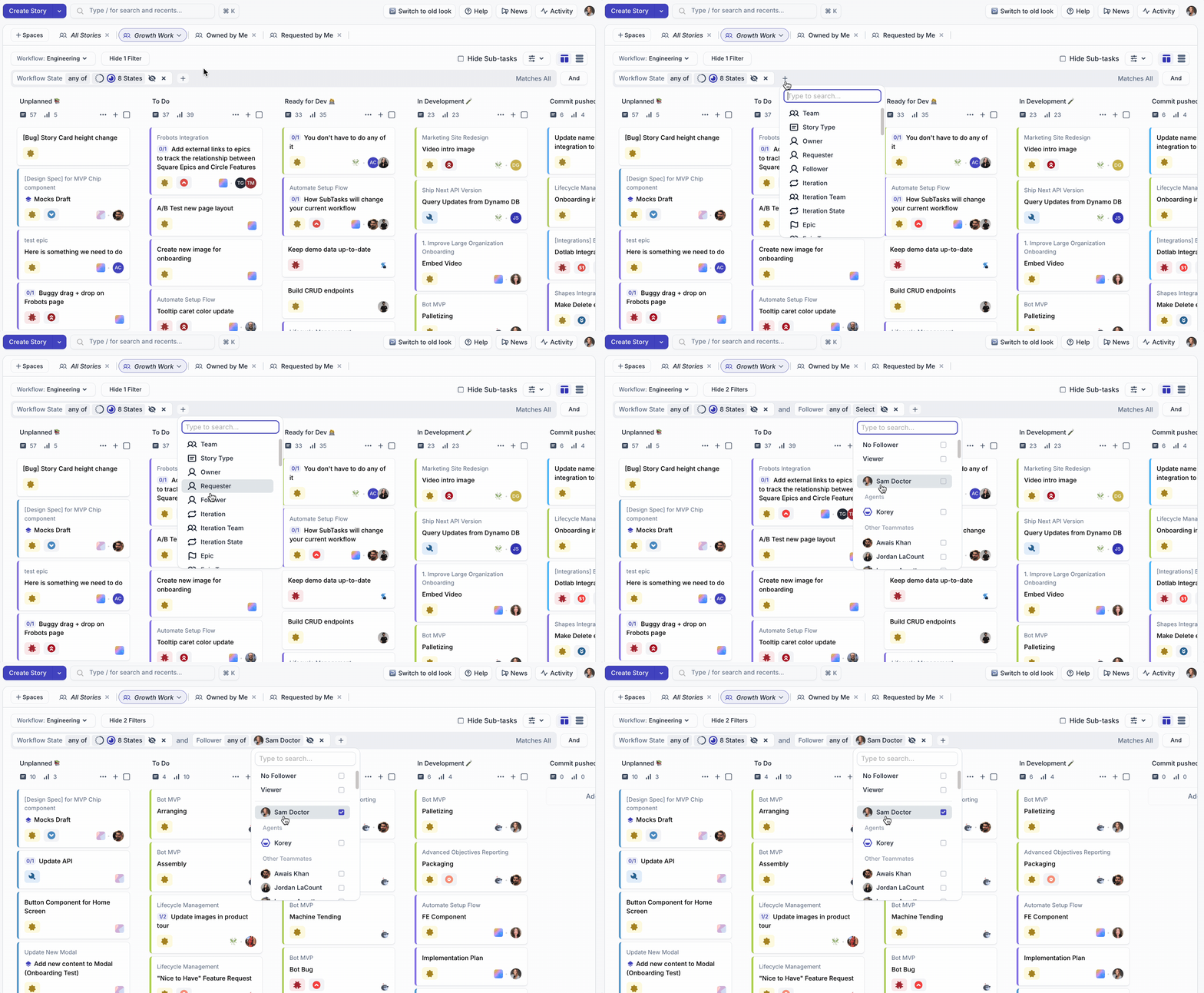
Adding Filters
- Click Add Filter or, ”+”
- Select your filter type
- Select your values in the filter pill
Removing Filters
- Click the x to remove the entire filter pill
- Click into the filter type and de-select values in the dropdown to remove specific values
Filter Operators and Quick Filters
| Filter Type | Function |
|---|---|
| Filter Category | Multi-Select. Select the filter category to filter specific values within that category. |
| Operators | Select is any to show all stories that meet that criteria. Select is not any to show the inverse of the selection. |
| Quick Filter (Boolean) | True/False filter values. |
| Search Filter | String. Filter Stories by search term (formerly Keyword filter). |
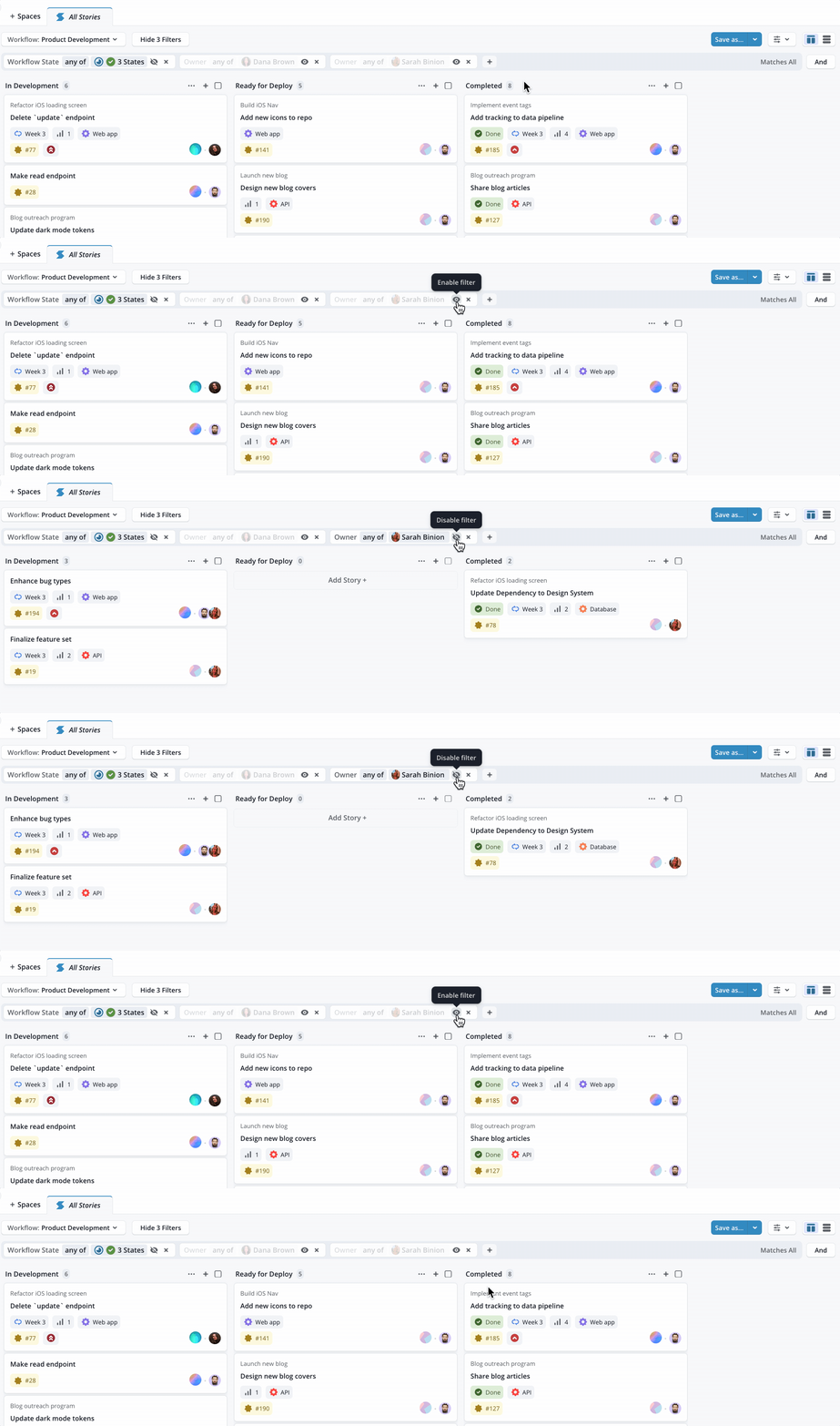
Quick Show/Hide Filters
You can enable/disable filters you have added to your space. You can save the setting to your Space if you want your teammates to have the same view!
Tip: Add Individual Owner or Requestor Filters to individually toggle on/off during team stand-ups!
Add “Matches Any” Group
You can add a Matches Any group in addition to the default Matches All group of filters. Select the “And” option on the far right of the page to open the Matches Any menu. Filters added in the Matches Any group (“Or”) will show all stories that meet any of the selected filter values.
Tip: Use the Matches Any group to filter your view by multiple owners and run team meetings (like Stand Up) in one Space!
Using Workflow Columns
On the Stories page (board view), each column represents a Workflow state. Stories are cards within columns, ordered by most recently updated.
Point totals appear at the top of each column, showing the combined Estimate Points of all Stories currently in that state. This helps you monitor capacity per state and spot bottlenecks.
Done states are ordered by date: Stories move to a Done state and are grouped by the week they were completed.
You can hide states via the filter menu. Tip: At the start of each sprint, hide the Backlog column to focus the team on Stories in progress.