Overview
With the Shortcut Zendesk integration, associating Zendesk support tickets with new or existing Shortcut Stories is a breeze.
Setting Up the Integration
The setup of this integration should be completed by a user who is an Admin in Shortcut and an Admin in Zendesk.
- While signed in to both your Shortcut and Zendesk account, navigate to the Zendesk Marketplace and search for Shortcut
No further action is needed in the Shortcut UI. Once the App is authorized, it will automatically enable the integration.
-
Click Install in the upper right when on the Shortcut App page in Zendesk Marketplace
-
Select the account to install this app. You will be taken back to the Admin Center apps page
-
Click Sign in with Shortcut under OAuth Authentication
-
The “Authorize” flow will open a new page where you will select the Shortcut Workspace that Zendesk will be able to access. Once you select the Workspace, click Allow Access
-
You will be redirected back to the Shortcut App page in Zendesk. The text next to OAuth Authentication should have a green check mark
-
Click Install at the bottom of the page to complete the setup
-
The app should now be authorized, installed, and ready to be used by all Zendesk Agents. No further setup or authorization is required on the Agent side
Using the Integration
Once the App is authenticated in Zendesk, the App will appear in the Apps toolbar whenever you’re in a ticket:
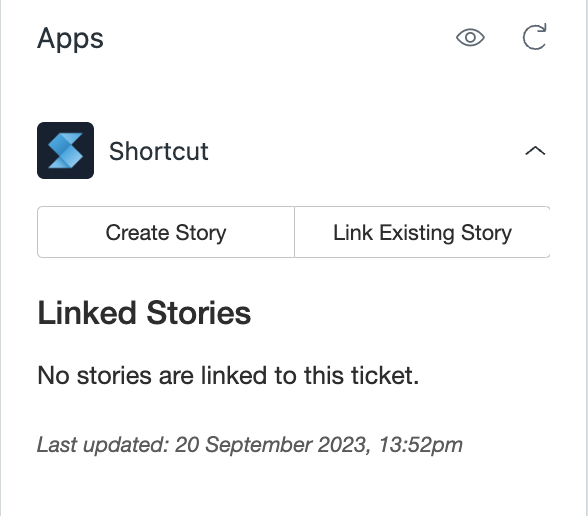
Now you’re ready to link and create Shortcut Stories from your Zendesk!