Managing Story Templates
Once enabled (Settings > Story Templates), Story Templates allow you to create Stories from a pre-formatted template, saving you and your team time and effort on commonly written Stories.
With Templates, you can set and save elements of a Story for future use by your whole team, such as a Story’s title, type, description, tasks, Team, Epic, Owners, Custom Fields, labels, due date, and attachments.
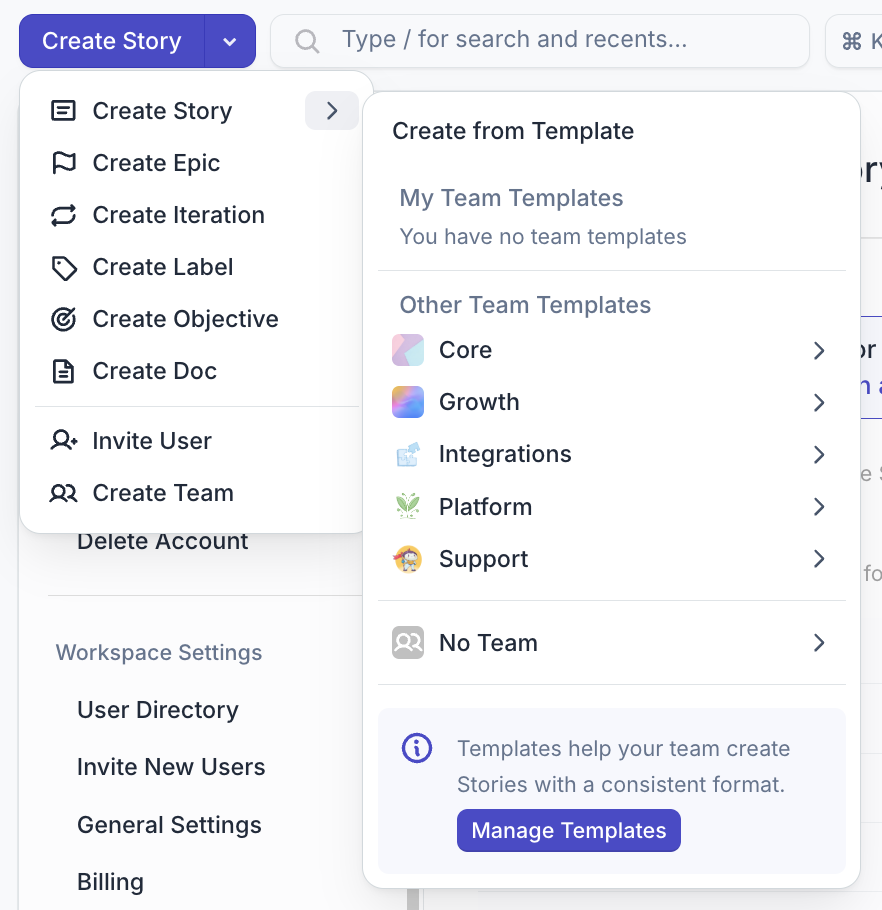
Story Templates are organized by Team under the Create Story dropdown menu. If you’d like to rename or delete a Story Template, you can do so on the Story Templates page in Settings.
Update a Story Template
To update a Story Template:
- Open the Story Template you would like to update
- Edit any of the Story details and metadata (except for the Requester as that will always default to the Story creator)
- Find the Create Story button and click the dropdown arrow
You will then see two options:
Clicking Update [Template Name] will bring up a prompt where you can keep the same name or rename the Template. Once finished, click Update Template. You can also select the Save as New Template option to create a separate template.
Creating Templates from Existing Stories
In addition to creating new Templates, you can turn any existing Story into a Template:
- Open the Story and click on the Story Actions menu (found by clicking on the ellipsis in the upper right corner of the Story)
- Click on Duplicate Story
- In the new Story dialogue, make any changes to the Template before saving
- Click on the arrow button next to Create Story
- Select Save as New Template in the drop-down menu
- Name your Template and click Save as New Template again
A success message will confirm that your new Template was saved and give you the option to create a new Story from the Template.
Sharing Template Links
To find the direct link to a Story Template:
- Open the template by going to the Create Story dropdown and hovering over the right-facing arrow to open the Create from Template menu
- Find the Story Template you’d like to link to and click on its name to open it
- Click on the link icon in the upper-right corner of the Create Story dialogue
- Click on the clipboard icon to copy the link to your clipboard (or use CMD+C/CTRL+C)
- Share with your teammates!