The GitHub integration links Shortcut Stories to commits, branches, and pull requests so development activity stays visible alongside the work.
Multiple Workspaces? Simply open the GitHub page from the Integrations window and select Add Account from Another Workspace.
Install the GitHub Integration
Only GitHub and Shortcut Admins can install the integration.
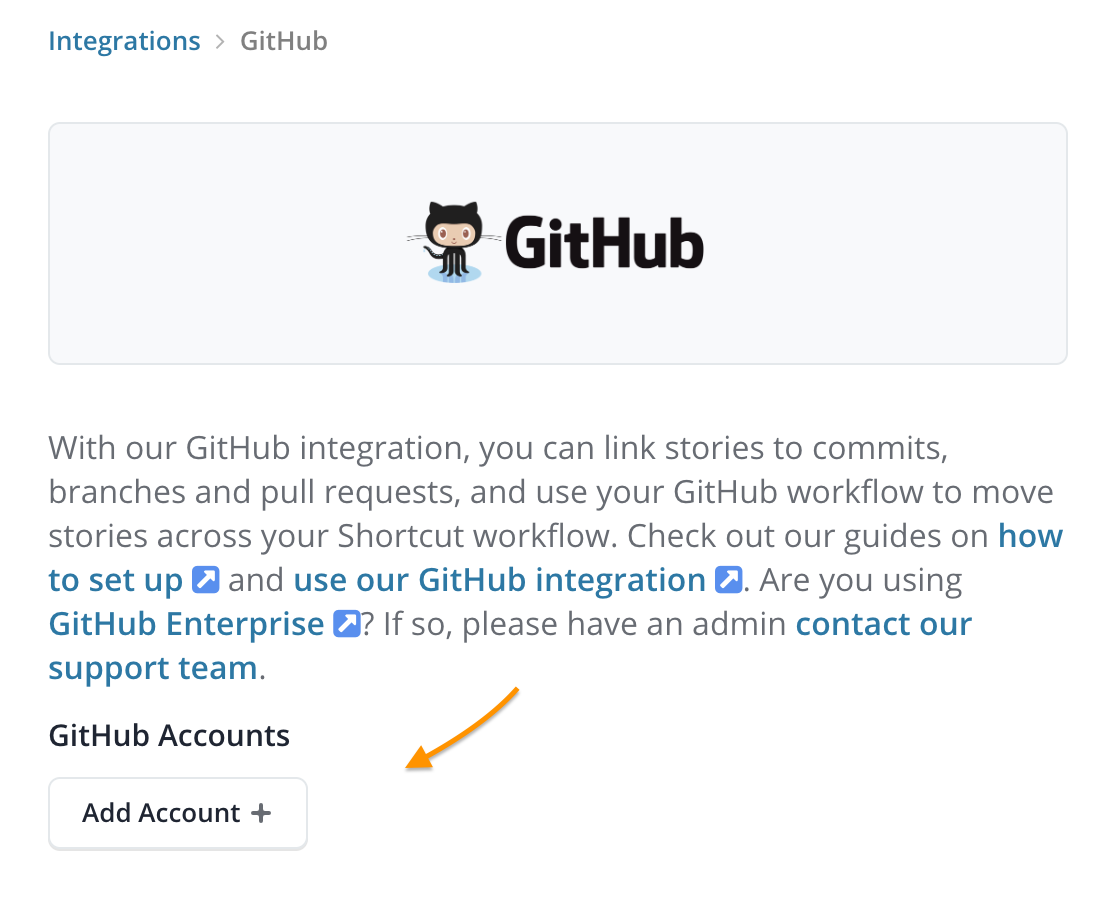
- In Shortcut, open Integrations > GitHub.
- Select Add Account.
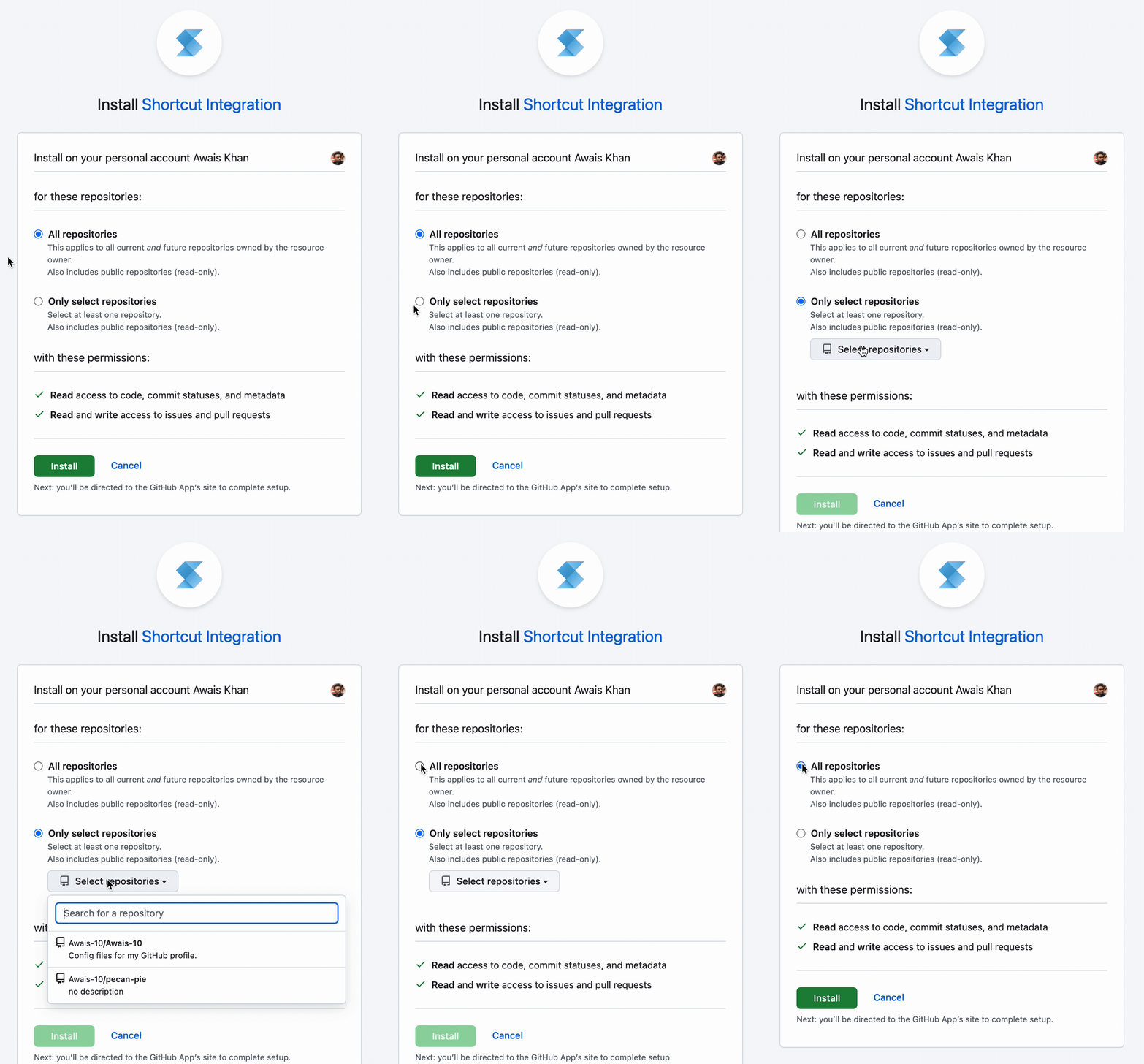
- In GitHub, choose the account or organization to connect.
- Grant access to all repositories or select individual repositories.
- Select Install.
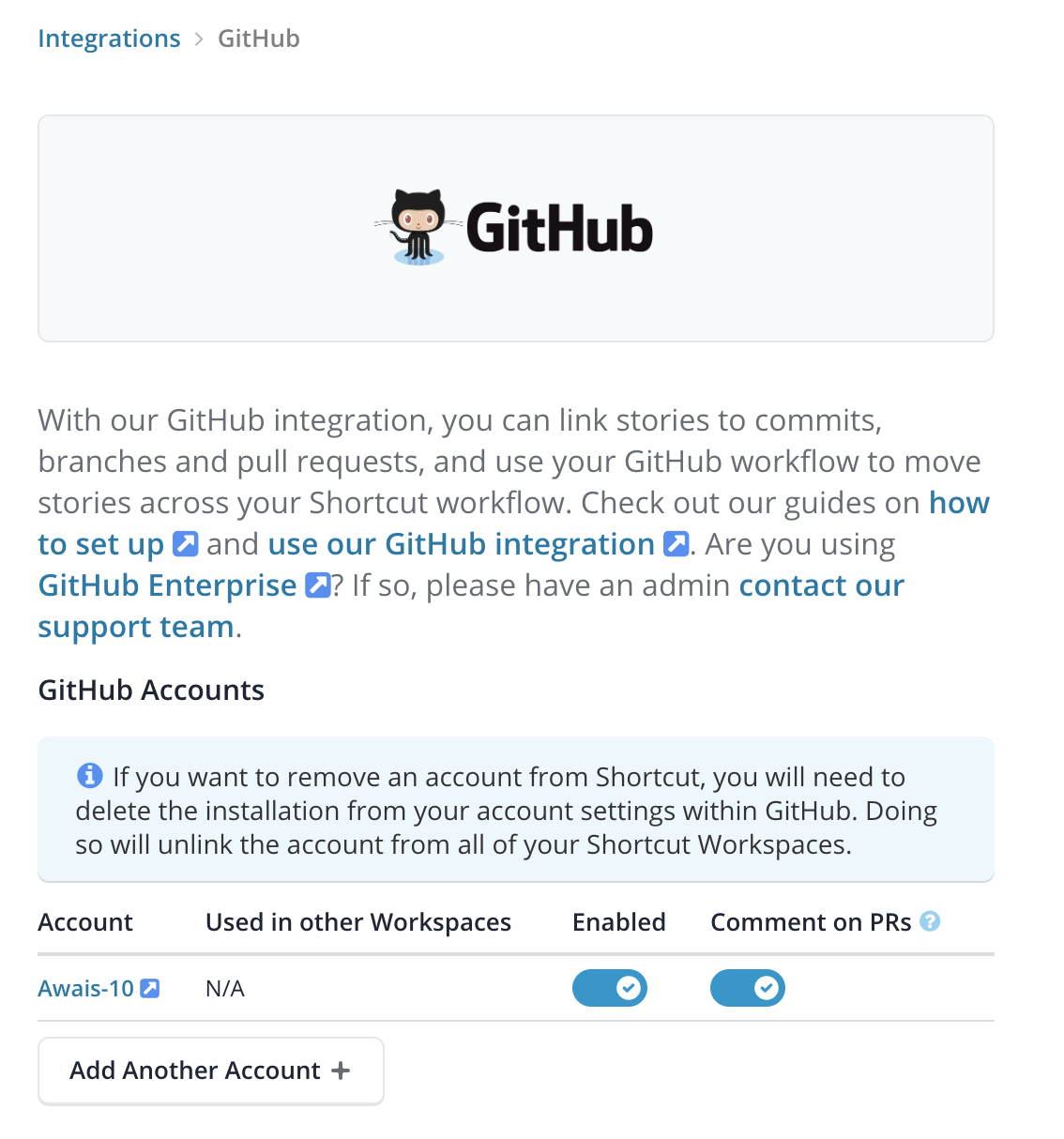
Shortcut returns to the integration page and displays the connected account.
Connect Individual Accounts
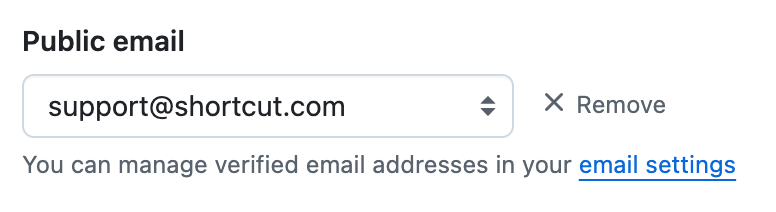
Shortcut matches GitHub activity to members by email address. Each person should make sure their primary GitHub email matches one of the email addresses in their Shortcut profile.
Using VCS Integrations
The following behavior applies to GitHub, GitLab, and Bitbucket Cloud, except where noted.
Associate a Branch with a Story
Open a Story and use Git Helpers to copy its suggested branch name. The branch contains /sc-<story-id>/; when it is pushed, Shortcut associates it with the Story.
You can customize the Git Helper branch format from Integrations > your VCS provider > Git Branch Formatting. Keep /sc-<story-id>/ somewhere in the format so Shortcut can identify the Story.
You can also associate work by adding [sc-123] or the full Story URL to a branch, commit message, pull request title, pull request description, or pull request comment.
Commits
For a direct commit or hot fix, include [sc-123] or the Story URL in the commit message. Multiple references such as [sc-123][sc-456] associate the commit with multiple Stories.
Commit verbs configured in your Workflow can move a Story forward. For example, a commit containing your Workspace’s finish verb and [sc-123] can move Story 123 to a completed state.
Commits can be removed from a Story from its Activity section and restored later.
Branches and Pull Requests
When a pull request is opened from a linked branch, Shortcut displays it on the associated Story. You can also link an existing pull request by adding [sc-123] to its title, description, or a new comment.
Use [sc-new-story] in a pull request title, description, or comment to create and associate a new Story. A branch containing sc-new-story can do the same when pushed.
Draft GitHub pull requests and GitLab WIP merge requests do not trigger event handlers until they become open. Add the skip-sc label, or include [skip-sc] in the pull request title or body, to prevent its event handlers from moving a Story.
Event Handlers
Event Handlers move linked Stories to selected Workflow States when development events occur.
- Open Integrations > your VCS provider > Event Handlers.
- Select Add New Event Handler.
- Choose an event, such as a branch association, commit association, pull request opening, approval, label, review request, or merge.
- Enter the relevant branch or label when requested.
- Select the destination Workflow State and save.
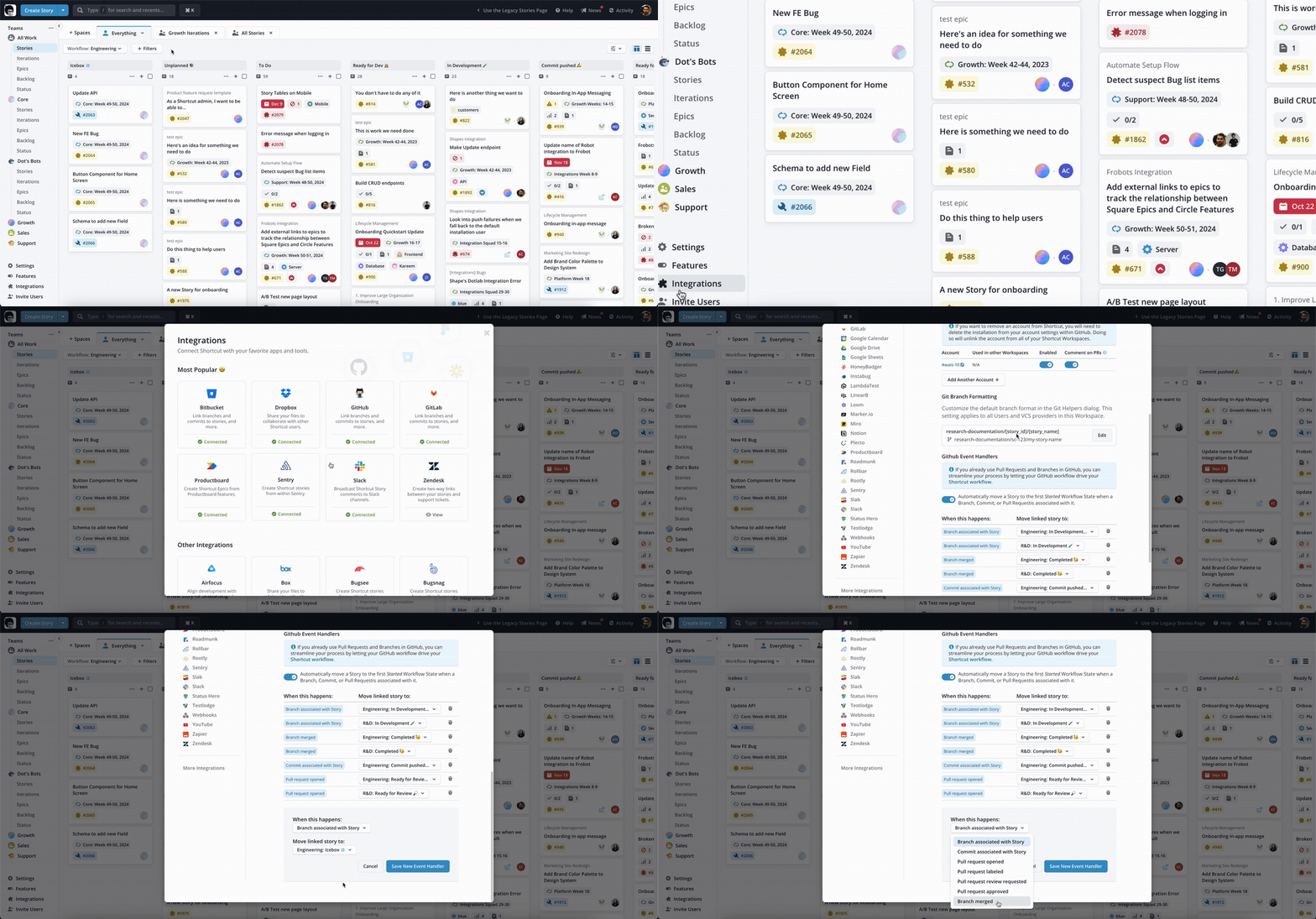
Pull request labels are not available for Bitbucket Cloud, and pull request review-requested events are not available for GitLab.
If a Story has another open pull request or an unmerged branch, Shortcut can treat that as pending work and delay a pull-request-opened or branch-merged handler.
GitHub Enterprise
Before setup, contact Shortcut Support to enable GitHub Enterprise for your Workspace.
- In Shortcut, open Integrations > GitHub, select Add Account, and connect GitHub.
- Enable GitHub Enterprise and copy the GitHub Enterprise Payload URL.
- In the GitHub repository or organization, open Settings > Webhooks > Add webhook.
- Paste the Payload URL, set the content type to
application/json, select Send me everything, and add the webhook.
If selecting individual events instead, enable Create, Delete, Comment, Pull Request, and Push. Each member’s primary GitHub email must also match an email in their Shortcut profile.