An SLA (Service Level Agreement) defines how quickly a team commits to responding to or resolving work (for example, “P0 issues must be triaged within 1 hour”).
With SLA Alerts enabled, Shortcut helps support and product teams maintain response-time commitments for high-priority or customer-impacting work.
What SLA Alerts do
When SLA Alerts are enabled, Shortcut will:
- Automatically apply an SLA to qualifying Stories
- Display a clear time-based indicator on the Story
- Send a single warning before the SLA breaches
- Send a breach notification if the SLA is not satisfied
- Display “resolved” status on the Story once it satisfies the SLA (moved to the set workflow state)
How SLA Alerts work
Trigger
An SLA is triggered when a Story meets specific criteria set in Settings.
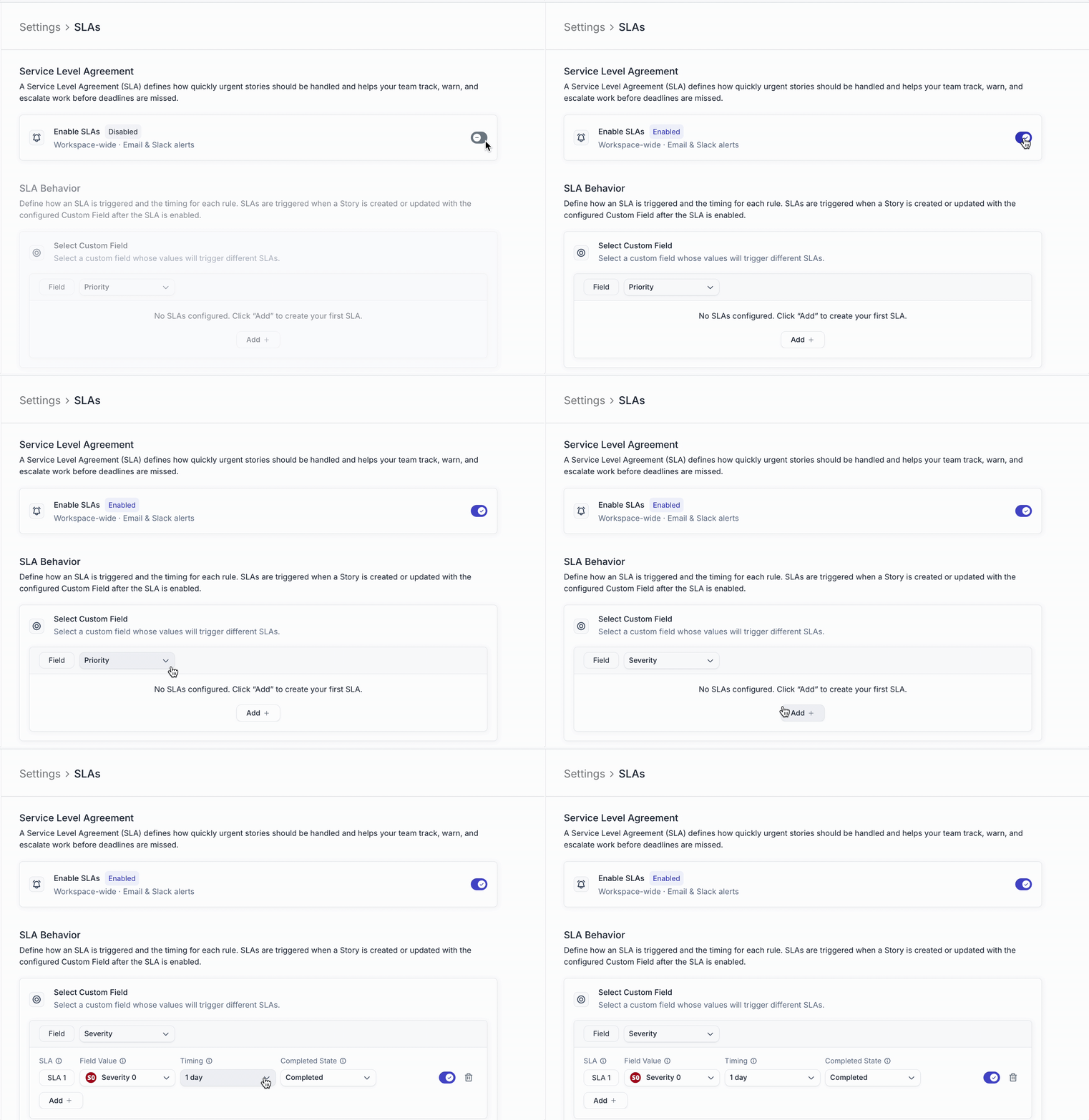
Once a Story is created and meets the criteria (e.g. Severity = Sev 0):
- The SLA countdown begins immediately
- The Story displays an active SLA indicator on the card and in Kanban/Table view on the Stories page
Satisfying the SLA
An SLA is satisfied when the Story moves into the selected workflow state in Settings (for example, Triaged or Done).
When satisfied:
- The SLA is marked as complete
- No breach notification is sent
Warning (At-Risk) & Breach Notifications
Shortcut will notify the Story owner via email and Slack, and notify a Slack channel if it is linked in Settings, when a Story is at risk or has breached the set SLA.
- Warning is sent when the Story has 50% of total time remaining from creation → SLA breach. (If the SLA deadline is 1 hour, the warning is sent within the first 15 minutes of SLA start time — this allows enough response time between warning and breach.)
- Breach is sent if the Story is not satisfied (moved to the determined workflow state) within the set time limit of the SLA