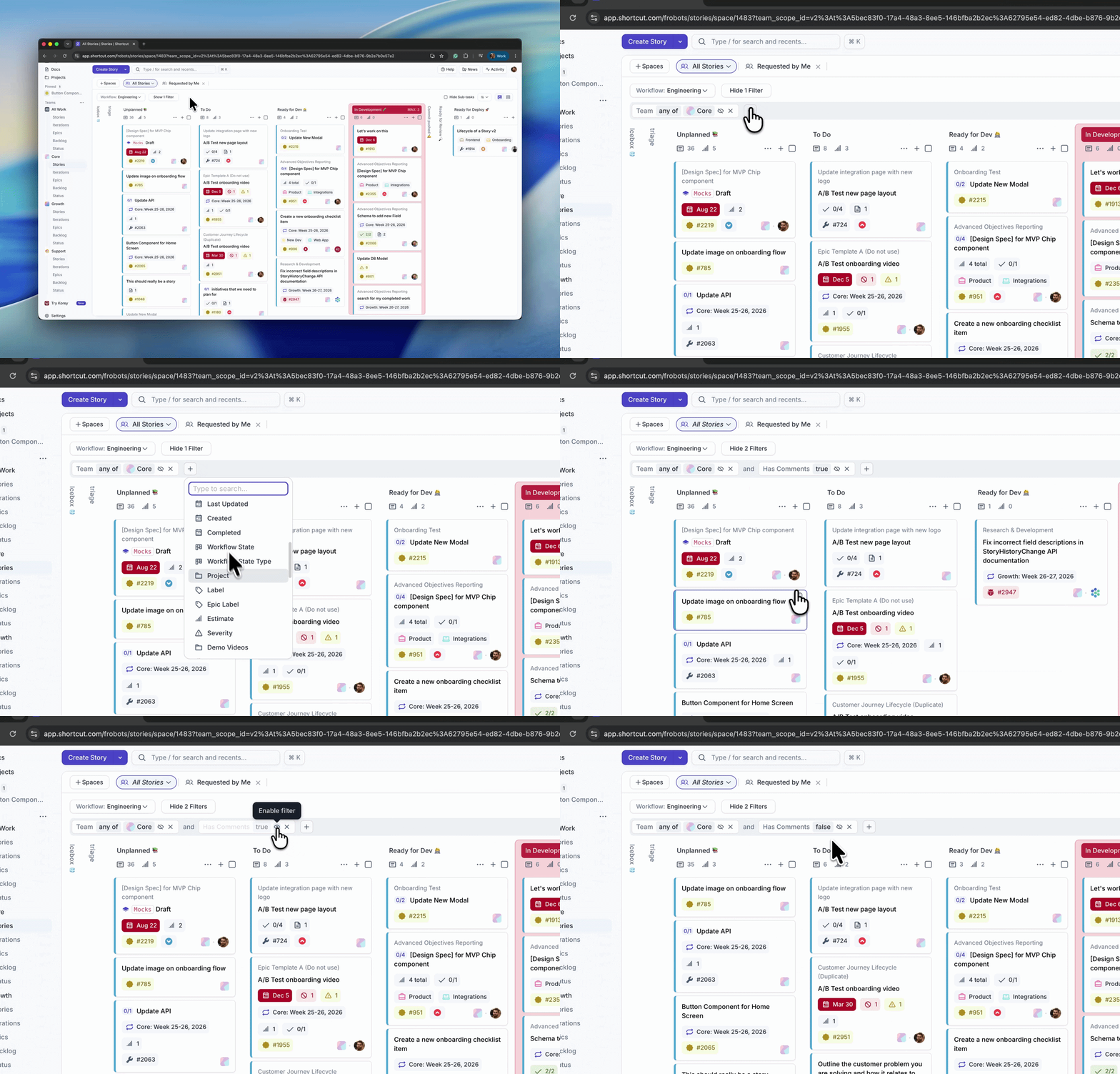
Spaces are customizable views of your Stories filtered and grouped by Projects, Epics, Workflow states, and other criteria. Create Spaces to focus your team on specific work, minimize context switching, and surface the Stories that matter most to each person or initiative.
Unlike static saved searches, Spaces are persistent tabs on your Stories page and can be shared, allowing your team to navigate consistently without re-applying filters each time.
Default Spaces
Every Workspace includes pre-built Spaces to get you started:
- All Work: All Stories (unfiltered)
- Owned by Me: Stories assigned to your profile
- Requested by Me: Stories you initiated
- Updated in Last Week: Recently touched Stories across the Workspace
- Current Iteration (team-scoped): Stories in your team’s active Iteration
- Bugs and Fixes (team-scoped): Bug-type Stories across your team
Tip: Team-scoped Spaces appear only to members of that team; Workspace-wide Spaces are visible to all team members.
Creating Spaces
Personal Spaces are visible only to you and appear as tabs on your Stories page. Use them for to-do lists, focus views, or work-in-progress dashboards without cluttering your teammates’ views.
Shared Spaces are visible to your entire Workspace and appear as tabs for all team members — ideal for sprint backlogs, team roadmaps, or cross-team initiatives.
To create a Space:
- On the Stories page, click Spaces (top-left), then click Create New Space.
- Configure your filters and grouping.
- Click the down caret to open the Space dropdown, then click Save.
- Name the Space and set its access:
- Personal Space (default) — visible only to you.
- Shared Space — change the Space Access configuration to Shared, then announce it to your team.
| Space Type | Who Can View this Space? | Who Can Edit this Space? |
|---|---|---|
| Personal | Only you | Only you |
| Shared Spaces | Anyone in your Workspace | Admins and Owners |
| ”Pre-made” Global Spaces (Shortcut Icon) | Anyone in your Workspace | Admins and Owners |
| ”Pre-made” Team Spaces (Team Icon) | Anyone in your Workspace on Team-Scoped Stories Page | Admins and Owners |
With either type, you can:
- Apply a variety of filters for Workflow, Epic, Iteration, Objective, Label, Team, etc.
- Match All or Any: “All” requires a Story to satisfy every filter; “Any” requires only one filter to match
- Group by a variety of criteria, e.g., Epic, Workflow State, Objective, Team, Owner, etc., on the Table view
Managing Spaces
Reordering Spaces: Drag the Space tabs left or right to reorder them. Your order is personal; other team members’ ordering is independent. This lets each person organize their tabs to match their workflow.
Pinning Spaces: Pin frequently used Spaces to keep them visible as tabs on the Stories page for quick access. Pinning is personal; your choices don’t affect which Spaces other Workspace members see. To pin or unpin a Space, open a Space’s context dropdown menu and select the pin option. You can also unpin a pinned Space from the Pinned list in the left sidebar using the Pin symbol that shows upon hover.
Finding Spaces: Click the Spaces button (top-right) to see all Workspaces Spaces. Search by name to quickly navigate to a Space. Your Personal Spaces are listed first; Shared and Workspace Spaces below.
Hidden Spaces: If a Shared Space is hidden (e.g., for archived work), find it via the Spaces menu and unhide if needed. Hidden Spaces don’t appear in tab view but remain accessible via the menu.
Saving a Workflow to a Space: If your team uses consistent Workflow states, you can save your Workflow configuration as a preset when creating a Space. This ensures consistency across team members’ views without requiring manual configuration.
Exporting Stories from a Space
Export all Stories in a Space as a CSV file to share with stakeholders, import into external tools, or create snapshots for reporting.
From a Space:
- Click the Space menu (down caret icon next to the Space name)
- Select Export
- Shortcut emails you a CSV download link
The exported file includes all Stories currently visible in the Space (filtered and grouped according to your Space configuration). Use exports for status reports, handoffs to external teams, or auditing.
Tip: Create a Shared Space for a specific project or Objective, export it as a final status report, then archive the Space once the work is complete.
Best Practices
- Create one Shared Space per major initiative or team focus area, not one for every possible filter combination
- Use Personal Spaces freely for individual productivity without worrying about team clutter
- Revisit Shared Spaces quarterly to retire ones that no longer serve a purpose
- Document what each Shared Space is for in a team wiki or onboarding guide, especially for new team members