Use Microsoft Entra ID to create, update, deactivate, and reactivate users in a Shortcut Workspace. You can also map Shortcut workspace roles and sync Entra groups to Shortcut Teams.
Before you begin
- Use a Shortcut Enterprise plan or a Business plan with the SSO add-on. You need Owner or Admin access in Shortcut and permission to manage the enterprise application in Microsoft Entra.
- Configure SAML SSO for your Shortcut Organization. SSO can remain optional. Set the destination Workspace to invitation-only under Settings > Invite New User > Settings.
- Ask Shortcut Support to enable SCIM and issue a Tenant URL and Secret Token for the Workspace. Use the full URL Support provides. The token is specific to that Workspace.
SAML applies to the Organization and SCIM applies to the Workspace. Create a separate provisioning app for each Workspace and keep it separate from your Shortcut SAML sign-in app. Users who sign in through Entra SAML also need access to the SAML app.
1. Create and connect the provisioning app
- In the Microsoft Entra admin center, go to Enterprise applications > New application > Create your own application.
- Name it for the destination Workspace, choose Integrate any other application you don’t find in the gallery (Non-gallery), and select Create.
- Open the new app and select Provisioning > New configuration. If you see Get started, select it and set Provisioning Mode to Automatic.
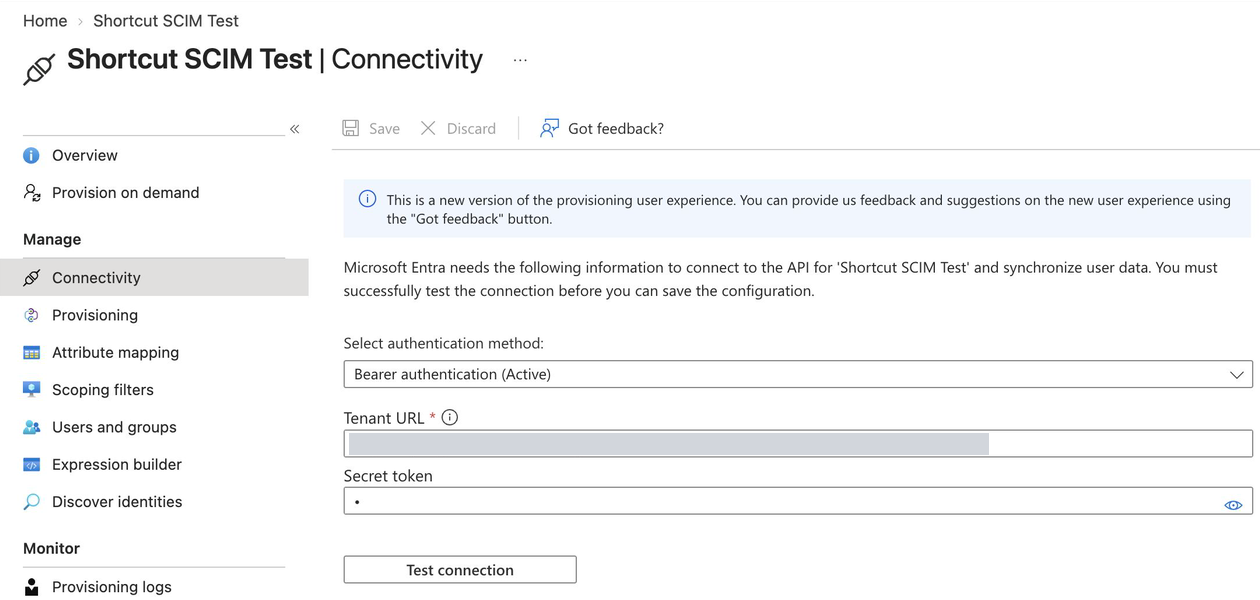
- Use Bearer authentication. Enter the Tenant URL and Secret Token from Shortcut Support under Connectivity or Admin Credentials, depending on the Entra view.
- Select Test connection. After it succeeds, select Create for a new configuration or Save when editing one.
2. Map user attributes
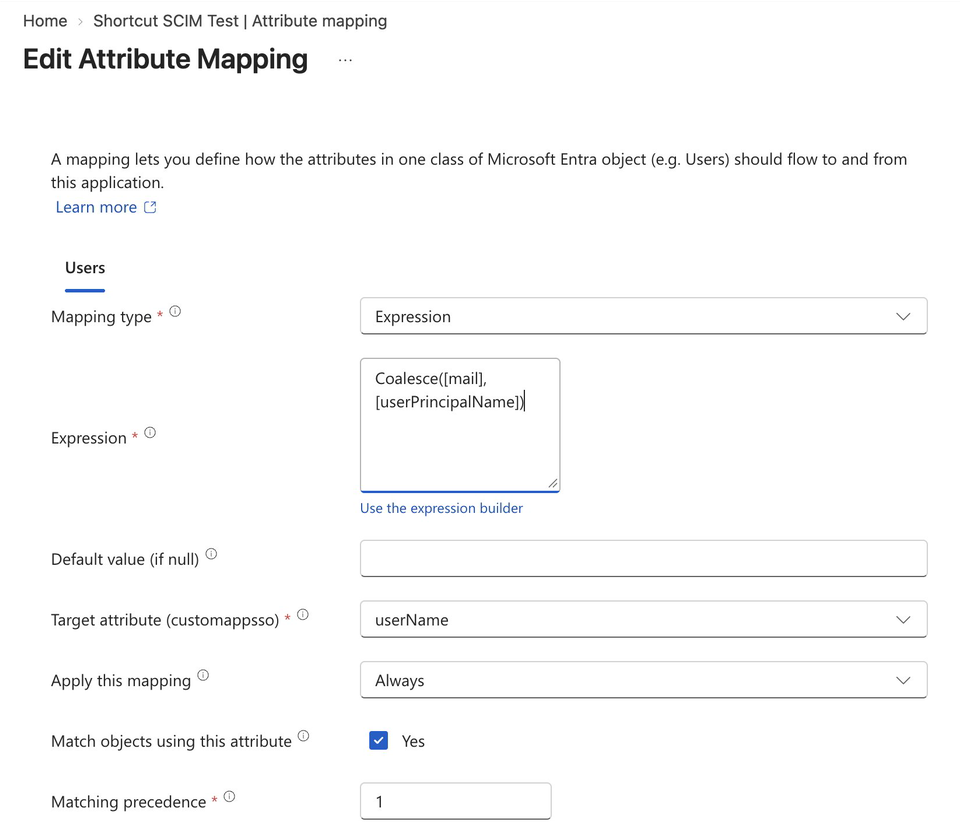
Open Provisioning > Attribute mapping > Users. In the legacy view, expand Mappings and select Provision Microsoft Entra ID Users. Edit the existing rows for these targets so each target has one mapping.
| Entra source or expression | SCIM target | Mapping type |
|---|---|---|
Coalesce([mail],[userPrincipalName]) | userName | Expression. Enable Match objects using this attribute and set matching precedence to 1. |
Coalesce([mail],[userPrincipalName]) | emails[type eq "work"].value | Expression |
displayName | displayName | Direct |
objectId | externalId | Direct |
Switch([IsSoftDeleted], , "False", "True", "True", "False") | active | Expression. Keep Entra’s default. |
Shortcut matches users by email. Map userName and work email from the same expression so the values agree, including for users without a mail value. Use userName as the matching attribute. Shortcut ignores extra attributes such as addresses and phone numbers that the default Entra configuration may send.
Under Target Object Actions, select Create and Update and clear Delete. If the actions are hidden, switch to the legacy mapping view. Shortcut deactivates workspace access through updates to active, so leave that mapping in place. Save your changes. Entra may restart the provisioning job when you save mapping changes.
Optional role mapping
New users are Members when you omit the role mapping. Updates without a role keep the user’s existing role.
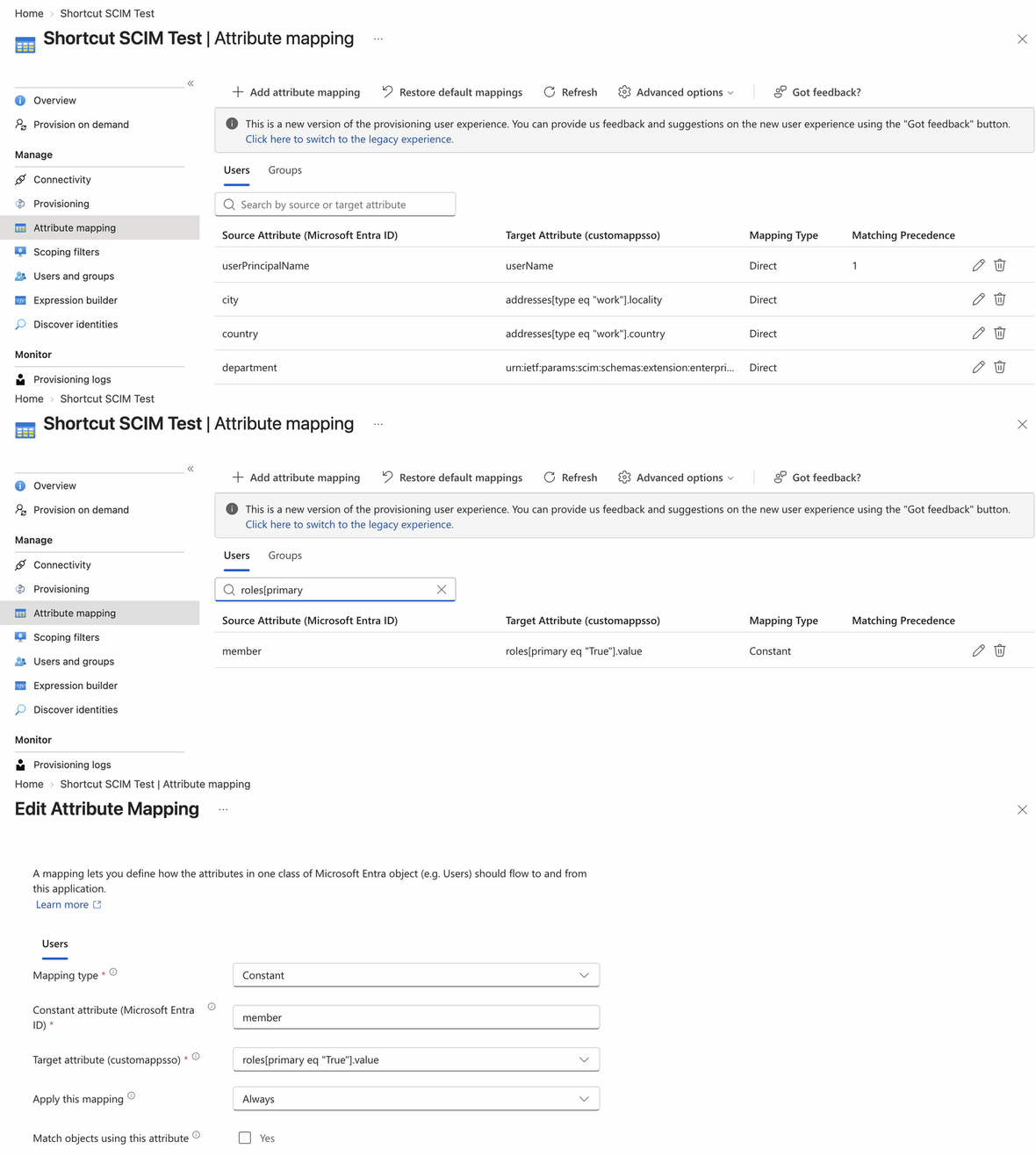
To manage roles from Entra, add a constant or an expression targeting roles[primary eq "True"].value. Use the lowercase values observer, member, or admin. Set Apply this mapping to Always to sync changes for existing users. A constant applies to every user in scope, so choose it with the full assignment list in mind.
For an expression, use an attribute your administrators control that is available in your provisioning source. For example, if extensionAttribute1 holds the intended Shortcut role, this expression sends only the three supported values and skips the role for any other value:
IgnoreFlowIfNullOrEmpty(Switch([extensionAttribute1], "", "admin", "admin", "member", "member", "observer", "observer"))Test each value you plan to use before rollout.
SCIM shows a workspace Owner as admin. Sending admin keeps the Owner role, but sending member or observer changes it. A constant member mapping set to Always demotes any Owner assigned to the app, so make sure your mapping sends admin for Owners.
With Always selected, a role changed directly in Shortcut can be overwritten the next time Entra exports a role for that user, including after a mapping change or a provisioning restart. Manage ongoing role changes in Entra when you use this setting.
Use the standard roles target for Entra. If you’re updating a configuration that also maps the legacy role target, remove that mapping. Shortcut gives role precedence when both attributes are sent together. Assigning an enterprise app’s Entra role and setting a Shortcut role through SCIM are separate settings. Microsoft’s mapping reference
Watch how to find and review the role mapping
3. Assign and provision a test user
- Under Provisioning > Settings, set Scope to Sync only assigned users and groups and save.
- In Users and groups, select Add user/group, select a test user, and select Assign.
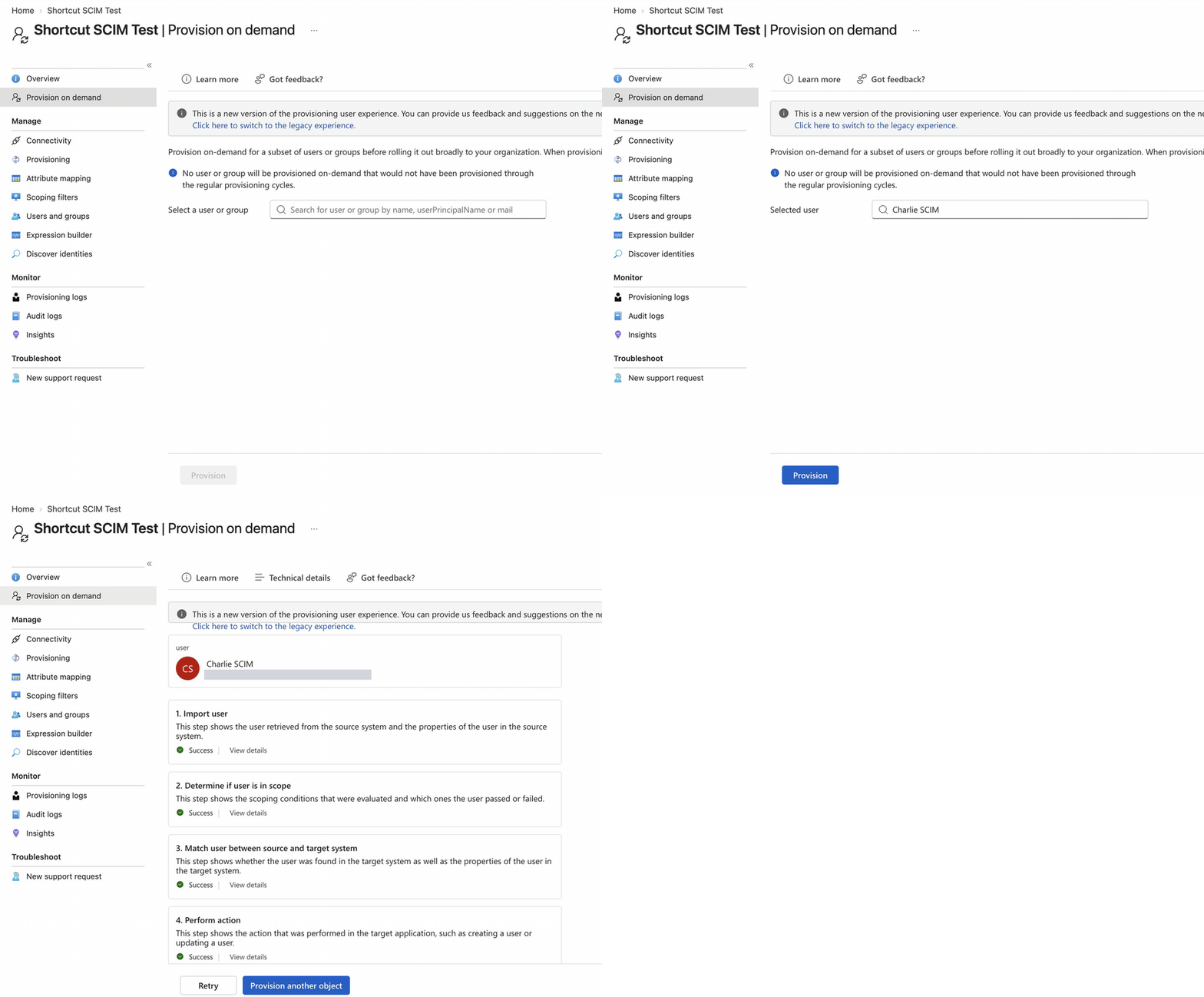
- Open Provision on demand, search for the test user, select them, and choose Provision.
- Expand the result for Perform action to see whether Entra created or updated the user and what values it sent. Verify the user and role in Shortcut User Management. If your Organization already has a Shortcut user with the same email, check that Entra links to the existing user.
- If the user is skipped immediately after assignment, verify the assignment, wait a few minutes, and retry. Microsoft documents a replication delay of up to a few minutes before on-demand provisioning recognizes a new assignment. If you recently edited a mapped value, check the imported value before retrying.
Watch an on-demand provisioning run
When the test passes, assign the remaining users. Select Start provisioning on the provisioning Overview page, or set Provisioning Status to On and save in the legacy view. Use Provisioning logs to monitor the rollout. Microsoft documents an initial cycle followed by incremental syncs about every 40 minutes. Microsoft’s SCIM setup guide
Manage users and roles
| What you want to do | What to change in Entra |
|---|---|
| Add someone to the Workspace | Assign them to the provisioning app and let the next cycle run, or use Provision on demand. |
| Change a mapped name, email, or role | Update the mapped source or role expression. Verify the export and the resulting values in Shortcut. |
| Deactivate workspace access | Remove the user’s assignment to the provisioning app or disable their Entra account. Entra sends an active update and Shortcut keeps the existing record. If access was assigned through a group, check whether another app assignment still puts the user in scope. |
| Restore workspace access | Restore the assignment or re-enable the account in Entra, then verify that Shortcut shows the existing workspace user as active. If the user still cannot sign in, check their SAML app assignment and contact Shortcut Support if their Shortcut account remains disabled. |
For an individual unassignment, you can use on-demand provisioning to test deactivation. For accounts disabled or deleted in the Entra directory, use the scheduled cycle because those accounts are unavailable in the on-demand picker. Verify the result in Provisioning logs and in Shortcut. Microsoft’s on-demand provisioning guide
Deactivating workspace access removes the user from all Teams in that Workspace, and restoring access doesn’t add them back. After you restore a user, check their Team memberships. If you use group provisioning, verify that Entra has reapplied the expected memberships.
To pause scheduled syncing, select Pause provisioning from Overview, or set Provisioning Status to Off and save in the legacy view. A cycle that is already running can continue to completion. Resume the job when you’re ready for Entra to sync assignments and updates again.
Optional group provisioning for Shortcut Teams
Group-based app assignment requires Microsoft Entra ID P1 or P2. Entra provisions direct group members. Microsoft’s app assignment guide
- Open Provisioning > Attribute mapping > Groups, or Provision Microsoft Entra ID Groups in the legacy view, and enable the group mapping.
- Map
displayNametodisplayNameand set matching precedence to 1. MapobjectIdtoexternalIdandmemberstomembers. Keep Create and Update selected and clear Delete. - In Users and groups, assign the Entra group to the provisioning app. Use Provision on demand to test the group with up to five selected members, or wait for a scheduled cycle. Review the result, then check the Team and its membership in Shortcut.
Shortcut matches a Team by name or creates it with the Workspace’s default workflow. Group names must be 63 characters or fewer. Once linked, group renames and direct membership changes sync to the Team. Users deactivated through SCIM are removed from their Teams.
With Delete cleared, Entra doesn’t send a SCIM group delete, so removing the group in Entra doesn’t archive its Team. Archive the Team in Shortcut if needed and check its remaining members.
Troubleshoot provisioning
| What you see | What to check |
|---|---|
| Connection test fails | Check that the complete Tenant URL and the current Secret Token are for the same Workspace. Contact Shortcut Support if you need a replacement token. |
| User is skipped | Check the app assignment, provisioning scope, and the result under Determine if user is in scope. Newly assigned users can take time to appear in scope. |
| Username and primary email are inconsistent | Verify that both mappings use the same expression and export the same address. |
invalidValue or the wrong role | Check the exported value, the standard role target, and whether a legacy role mapping is also present. |
”Email already in use” (uniqueness) | Check the exported email and whether another Shortcut account already uses it, including an account outside your Organization. Contact Shortcut Support to resolve the conflict. |
| User is provisioned but can’t sign in | Check that the user can sign in through your Shortcut SAML app if SAML applies to them and that their workspace access is active. |
See the SCIM overview for supported attributes and additional errors.