Overview
Bringing the work your team has completed with you has never been easier. Your progress, history, insights, and all the wins you’ve made together in Trello can now be imported directly into Shortcut.
We’ll work to improve every facet of this import process using your direct feedback and insights along the way.
Team Preparation
Before starting, ensure you have:
- Proper Administrative permissions in both Trello and Shortcut
- Spoken with the various teams associated with the data you’re importing to understand their needs
Collecting your import information in a spreadsheet can streamline this process.
Requesting Import Permissions
Within Shortcut, we start by asking your team to set up permissions that allow us to communicate with Trello. Here’s what you’ll need:
- Your unique Trello Auth Key
- A unique Auth Token (can be revoked immediately after import process completes)
Your Auth Key helps our importer connect to the right Trello instance, and your Auth Token lets Trello know that we have permission to read and transfer your files.
Generate Auth Key and Token
- Login and navigate to Power Up: https://trello.com/power-ups/admin
- Generate a new Auth Key and Token by selecting New on the dashboard main page
- Follow the steps to generate a new Auth Key
- Follow the embedded link to generate the Auth Token:
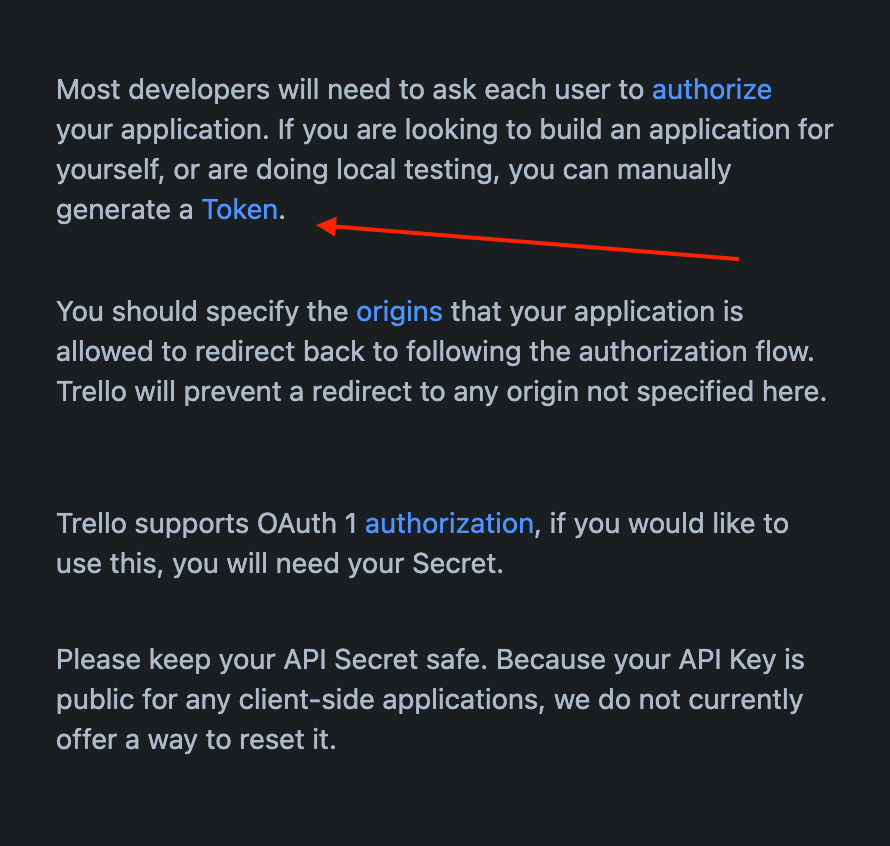
For more detailed information, visit Atlassian’s documentation.
Mapping
Let’s dig into the heart of the import process—telling your Trello data where it will now live in Shortcut. We recommend working through this part as a team to ensure everyone is comfortable with where their data will be mapped.
Information You’ll Need
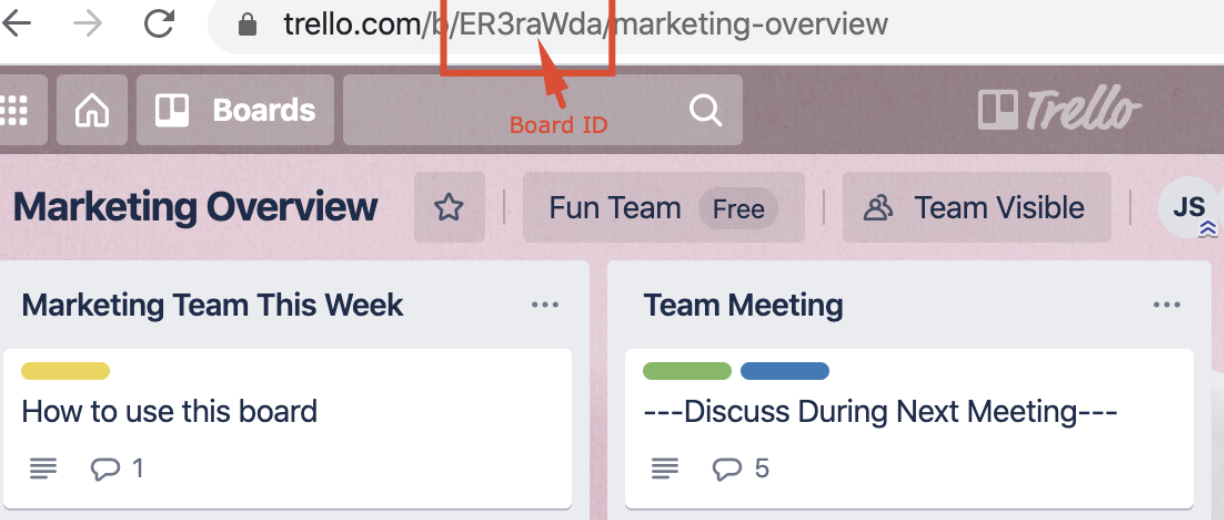
- Trello Board ID(s) - Found within the URL of the board(s) you’re importing:
- Board Name(s) - Helps organize the data during the process
- Target Shortcut Workspace name - Which Workspace will this data be added into?
- Target Shortcut Workflow(s) for each Board - All cards from a Trello Board will be mapped directly into an existing Shortcut Workflow
- User Mapping - Which Trello Users should be mapped to existing Shortcut Users? Which users need an invite to Shortcut?
- Default Story Requestor - If we cannot find a Trello Card creator, which Shortcut User should be the fallback? (usually the user running the import)
What Gets Imported from Trello
In addition to the core functionality, the following data will also be imported:
- Card Descriptions
- Designations (Owners, Requesters/Creators, and Followers)
- Labels
- Comments
- Attachments
- Due Dates
- Custom Fields (imported as Shortcut Labels)
- Checklists (imported as Shortcut Tasks on a Story)
Bulk Editing Imported Data
We find that teams can easily organize imported values using our bulk editing functionality.
To learn more about editing and assigning large groups of Stories, see Bulk Editing Multiple Stories.
Reverting Imports
Need to regroup after an import? Imports can be reverted. This will delete all Stories, Labels, and Users created during the import, giving your team a clean slate and restoring your Shortcut instance to before the import process started.
To request that your import be reverted, please contact support@shortcut.com with the subject “Revert Trello Import” for the fastest support.
Running a Second Import
Running a second import will create new Stories for Trello cards that have already been imported, resulting in duplicates.
There are a few options to get additional cards into Shortcut as Stories:
- Create a new Trello board - Move the new cards there, then import just that board (easiest option, but cards won’t be in the proper board in Trello)
- Rollback the prior import - Re-import completely to get the new Stories (any changes done on previously imported Stories will be lost)
- New full import into a different board - Move the net new Stories to the correct project, then delete the remaining duplicates (very manual or requires scripting)
- Create new Stories manually - Create new Stories in Shortcut for the new tickets in Trello