Overview
Within the Settings of your Workspace, prepare your team for success by adjusting the variety of features currently available in Shortcut based on your team’s needs and workflow. From here, you’ll be able to access:
- Features
- Automations
- Teams
- Labels
- Custom Fields
- Workflows
- Workflow States
- Work In Progress Limits
- Estimate Scale
- Story Templates
Features
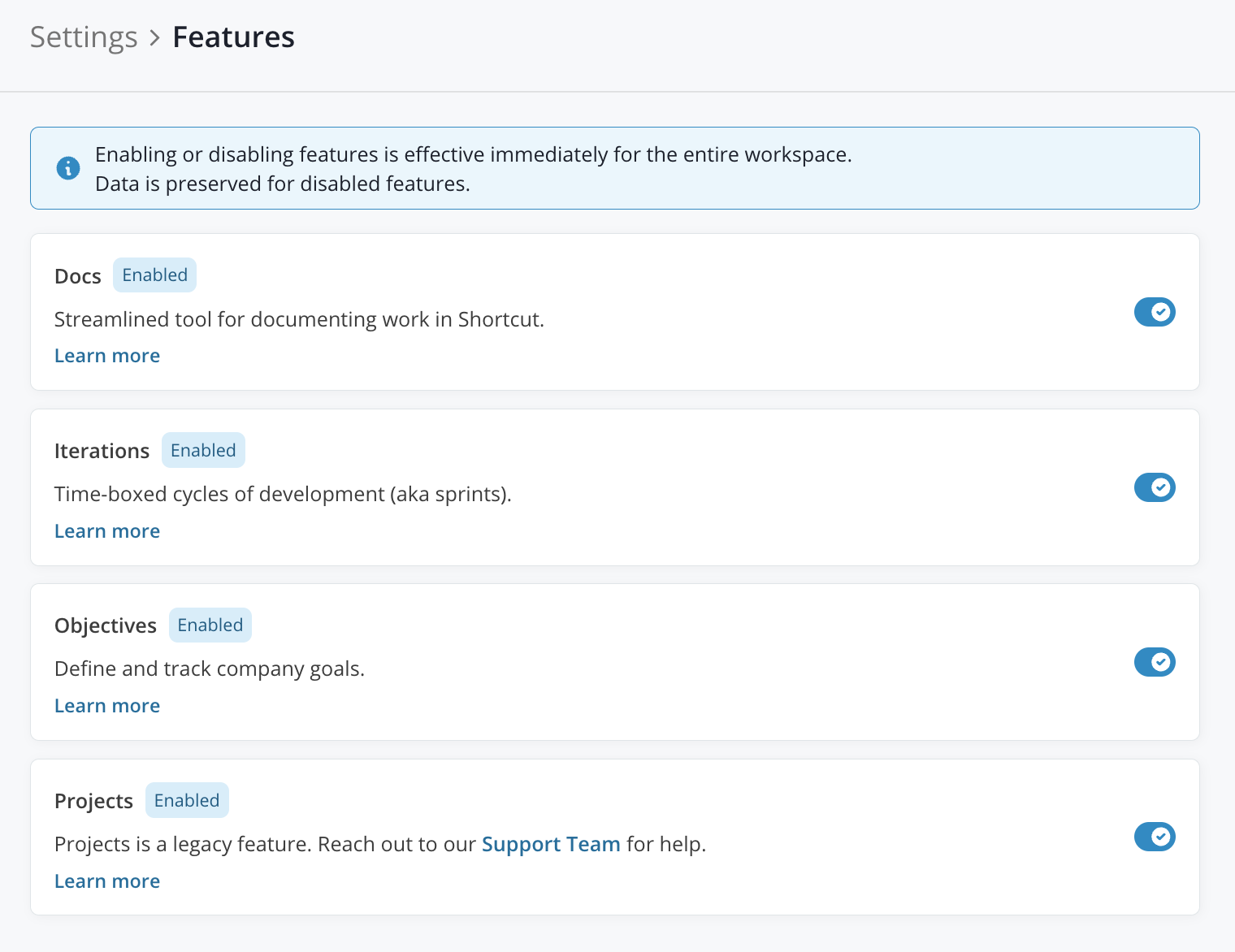
Discover how you can enhance Shortcut’s functionality through feature toggles in your Settings. Simply toggle features on or off to tailor the experience to your team’s needs. When you toggle a feature on, it will be accessible to all users in your organization.
On this page, you’ll be able to adjust:
- Docs - Streamline tool for documenting work in Shortcut. Learn more
- Iterations - Time-boxed cycles of development (aka sprints). Learn more
- Objectives - Define and track company goals. Learn more
- Projects - Projects is a legacy feature. Reach out to our Support Team for help.
Automations
Automations do the busy work so you can focus on the work you love. From the Automations Settings page, you’ll be able to toggle on/off and adjust settings for Epics and Iterations.
Learn more about Automations →
Teams
A Team in Shortcut represents a cross-functional squad, or any other group of users who work on projects together—users that collectively own Stories, Epics, and Iterations.
From the Teams Settings page, you’ll be able to create a new Team, see a quick view of Progress and associated Team members, and search for/access any Active or Archived Teams’ detail pages.
Labels
Labels are a way to associate Stories and Epics. You can filter against Labels throughout various Shortcut views and search for Stories that carry them.
From the Labels Settings page, you’ll be able to create new Labels, search for a Label, sort by criteria, see a quick view of associated Stories and Epics Progress per Label, and access any Active or Archived Labels’ detail pages.
Custom Fields
Custom Fields are part of the evolution of our Data Model that elevates the Shortcut experience for more structure, organization, and flexibility.
From the Custom Fields Settings page, Admins can adjust the values of Shortcut-defined field values and colors. Advanced Custom Fields allow for the customization of the title, description, icon, and values to fit your Team’s workflow.
Learn more about Custom Fields →
Workflows
A Workflow is the process through which Stories move, from creation to completion. Workflows are set by you and can be customized to be as simple or as complicated as you want.
From the Workflow Settings page, an Admin will be able to create new Workflows (if applicable to your Organization’s subscription plan), manage existing Workflows and Team associations, and quickly access respective Stories page views for each Workflow.
Workflow States
Workflow States are groupings of Stories that have a certain status within a Workflow. A Workspace comes with 5 default Workflow States that fall into the 4 Workflow State types (Backlog, Unstarted, Started, and Done). You can keep these default Workflow States as is, edit them, or delete them and add your own.
From the Workflow States Settings page, an Admin can create new Workflow States, manage existing Workflow States, identify the “Default State”, toggle Auto-assign Owner, and quickly access an Advanced Search page for all the Stories associated with a specific State.
Epic Workflow States
From the Epics tab on this Workflow States Settings page, an Admin can customize the parent states (Unstarted, Started, and Done) to contain additional child states that may help further categorize how Epics are managed in the Workspace.
Work In Progress Limits (Early Access)
WIP (Work-In-Progress) Limits help Agile development teams maintain focus and efficiency by setting a recommended limit to the amount of work in progress to prevent bottlenecks and ensure Stories are completed before picking up new ones.
From the Work in Progress Limits Settings page, an Admin can select a Team to view and edit limits for any associated Workflows by State.
Estimate Scale
Shortcut offers several graphs and reports that you can use to visualize your Workspace’s productivity. You can express whether you want to track progress in Estimate Points or Story Count by selecting from the Show Progress and Metrics Using dropdown.
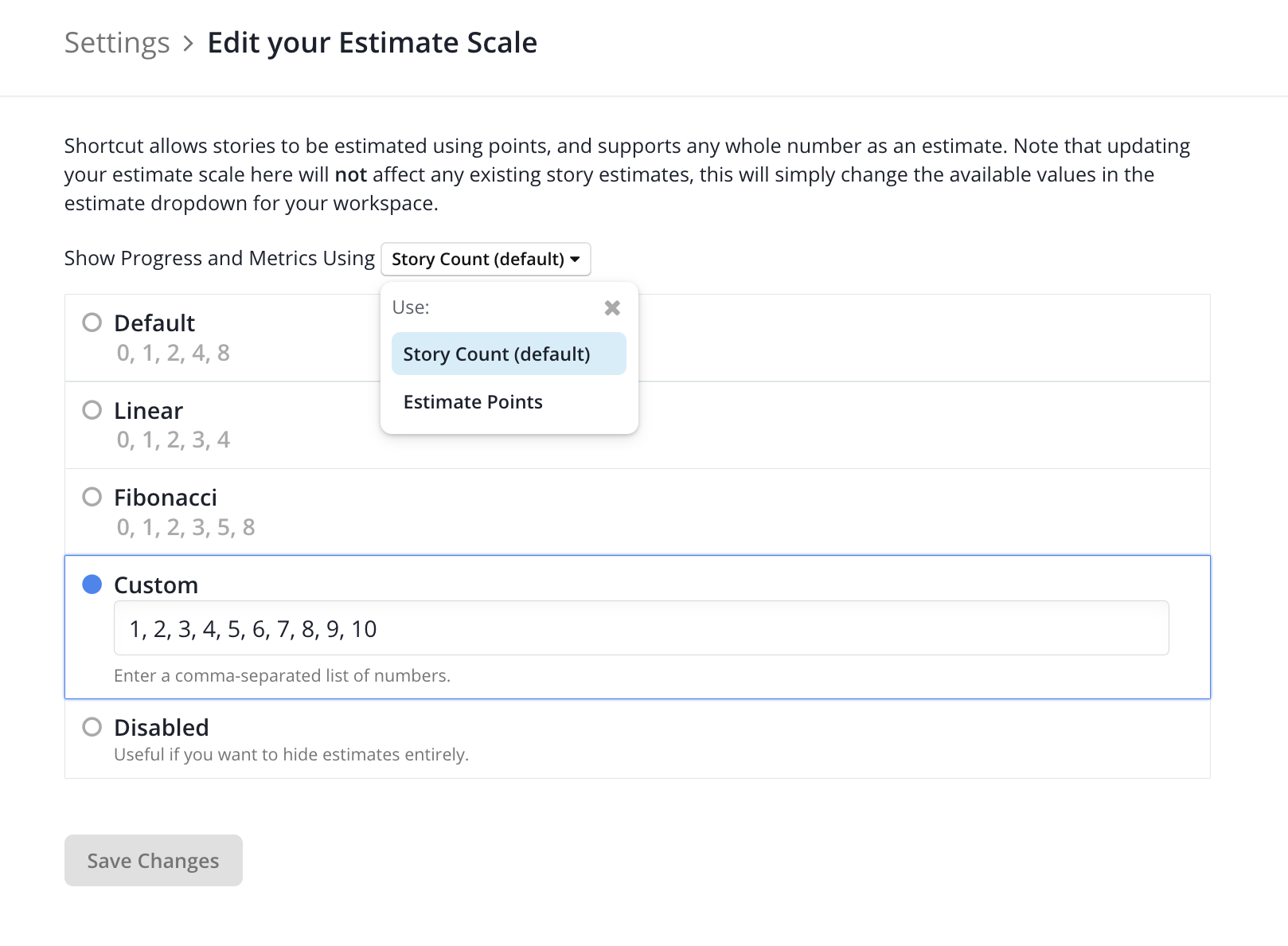
Setting Your Workspace’s Points Estimate Scale
Story point estimations can be an important part of a Workspace’s agile development methodology. Shortcut gives you the option to customize your estimate scale in Settings > Estimate Scale. Stories can also be set as “Unestimated”, which is the default for new Stories.
Story Templates
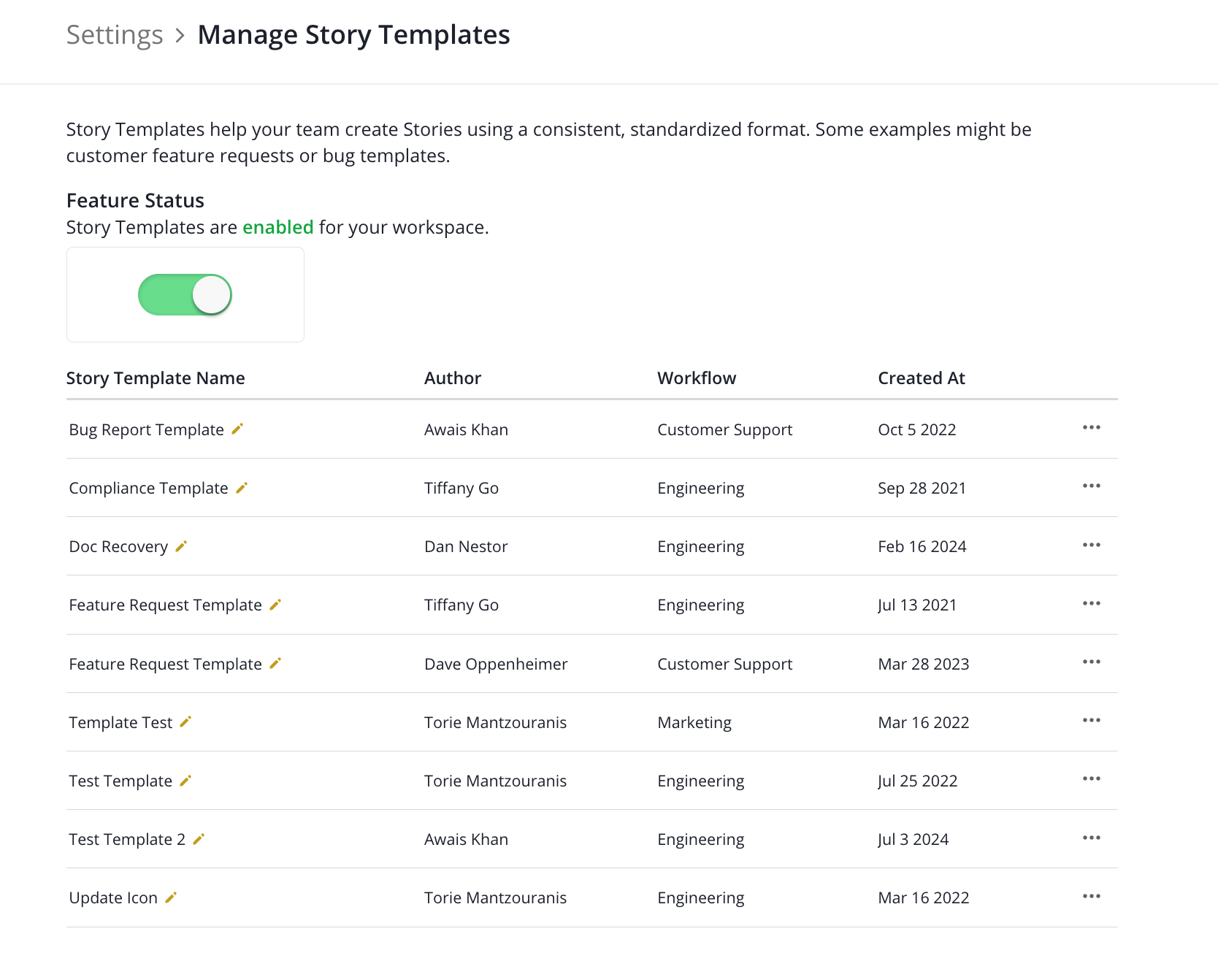
Story Templates allow you to create Stories from a pre-formatted template, saving you and your team time and effort on commonly written Stories.